Turn on the vendor compliance form
Go to the building's Settings tab and find Key exchange & vendor compliance. The Vendor compliance form row has its own toggle, separate from key exchange. Turning it on means any vendor pass created for this building requires the vendor to e-sign a building-access form before entry.
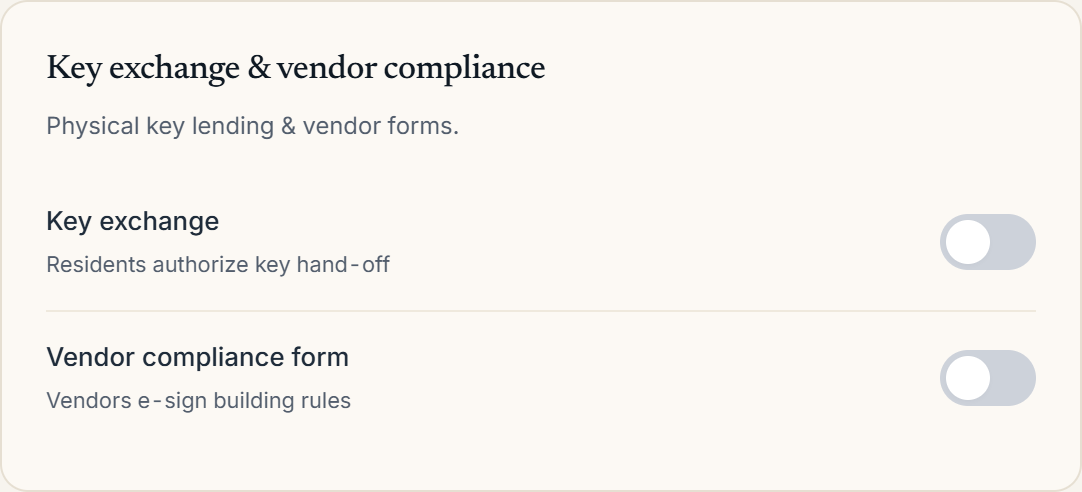 The Key exchange & vendor compliance section on the building Settings tab
Edit the form text
Once the toggle is on, a View / edit form button appears next to it and opens the Vendor building-access form modal. It has two views: Edit, where you write the agreement text in a plain textarea, and Preview, which renders the text with sample values filled in so you can see exactly what a vendor will read.
An Insert row above the textarea lets you drop in placeholder tokens (building name, company, unit, management company) that fill in per vendor when the form is presented. Saving the form bumps its version number; passes a vendor already signed keep the version they signed against, so past signatures stay valid even after you edit the wording. Use Reset to default if you want to start over from Veni's default text.
What's captured automatically
Below the editor, the modal lists what the form captures at signing, and it's fixed by Veni, not something you configure here:
- Signer name
- Company
- Phone
- ID check
- Party roster
The vendor types their e-signature on their own phone. The ID check is captured separately, by the desk, at the moment of entry. If this building also has ID verification on, the same encrypted desk scan used for regular guests applies to vendors too, following whatever mode (off, optional, or required) you've set for the building.
Unsigned passes get a sign-on QR at the desk
If a vendor pass reaches the front desk before the vendor has signed, the front desk doesn't turn them away. The tablet shows a Show sign-on link button that displays a QR code; the vendor scans it with their own phone, which opens the access form for them to sign there. While waiting, the desk screen shows "Waiting for signature." Once signed, the pass flips to a green "Access form on file" banner and the front desk can proceed with the ID check and entry.
More in Guest passes