A guest pass gives a visitor temporary access to one or more doors without needing a Veni account. The pass is a QR code the visitor presents at the panel or shows at the front desk.
Issue a pass as a property manager
- Open the building and go to the Guest Passes tab.
- Choose Issue Key.
- Select the host (the unit the visitor is visiting).
- Set the valid window: a specific date range, or mark it recurring and pick which days of the week it is active.
- For vendor passes, set the expected party size and the pass kind to Vendor visit.
- On front-desk buildings with ID verification enabled, add the visitor's first and last name: the front desk will check it against the presented ID.
- Save and share the pass. The pass detail modal shows the QR code; copy the link to send it to the visitor directly.
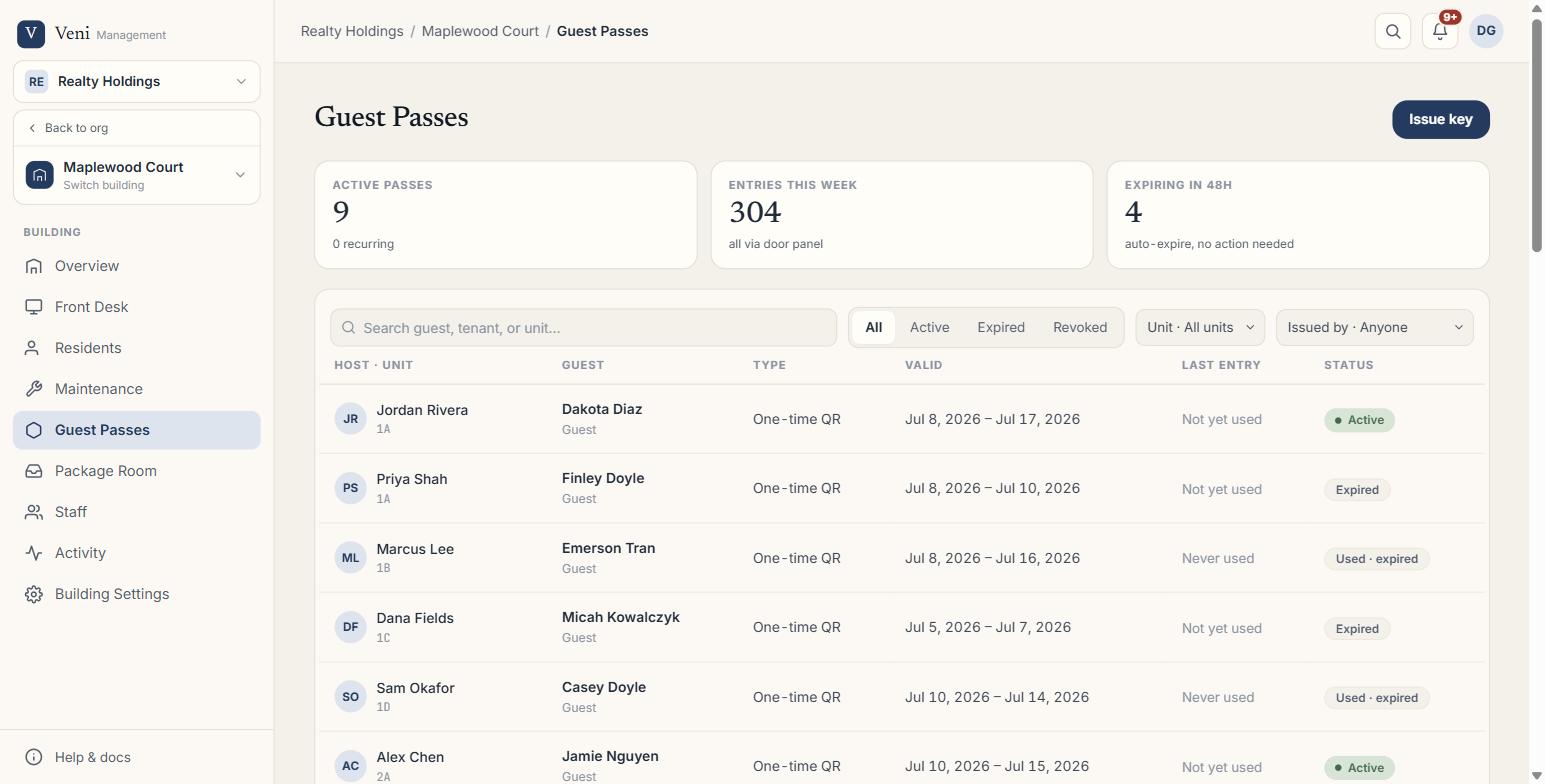 The Guest Passes tab
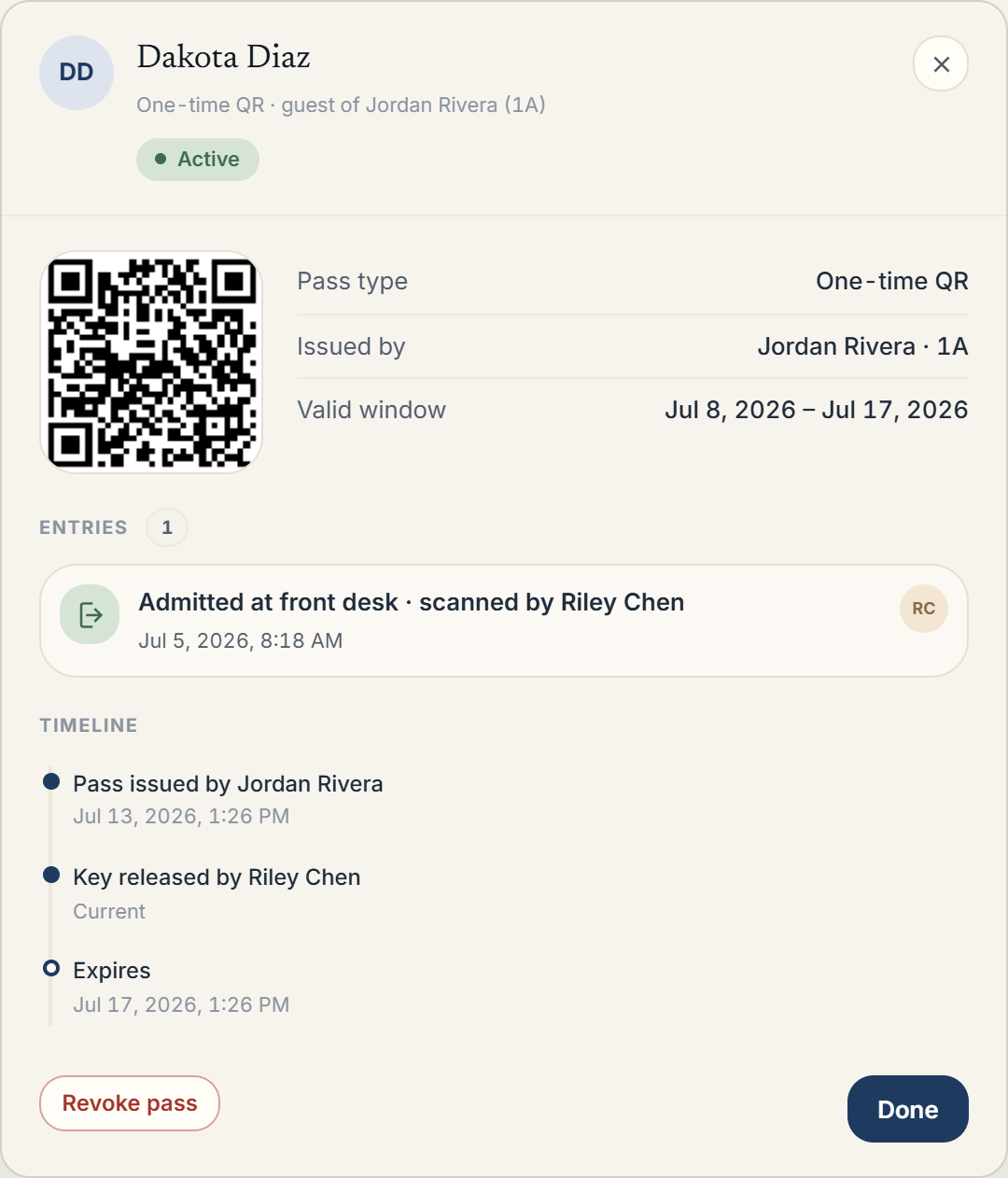 The pass detail modal, with the QR code, entry log, and timeline
How QR redemption works
When a visitor scans the QR code at a door panel, Veni checks that the pass is:
- Within its valid time window (and, for recurring passes, on an allowed day).
- Not revoked.
- Under the maximum use count (default 1; up to 50 per pass).
If all checks pass, the door opens and an entry event is recorded against the pass, showing which door was used and when. Each entry is visible in the Last entry column of the Guest Passes table.
On front-desk buildings, the front desk scans or searches for the pass and manually opens the door from the front desk tablet. Entry is attributed to the person on duty.
Pass types at a glance
| Type | Typical use | Recurring? |
|---|---|---|
| One-time QR | Single guest visit | No |
| Recurring | Cleaner, dog walker, regular visitor | Yes; by day of week |
| Vendor visit | Contractor, delivery requiring key loan | No |
Revoking a pass
Open the pass detail modal and choose Revoke pass. The pass immediately stops working at all doors and is marked Revoked in the table. Revocation cannot be undone; issue a new pass if access needs to be reinstated.
More in Guest passes
- Issuing a management key1 min read
- Vendor visits: compliance forms and ID at the desk1 min read
- Tracking, revoking, and expiring guest passes1 min read
- Recurring and scheduled guest passes2 min read
- Setting up the vendor compliance form2 min read