Most buildings have more than one way in. Alongside the front door, Veni lets front-desk buildings add secondary doors (a delivery entrance, a loading dock, a garage gate, or an accessible side entry) each with its own hardware and its own QR sticker.
You'll find doors under Building Settings → Entry & Access (also reachable at the Doors surface of the building).
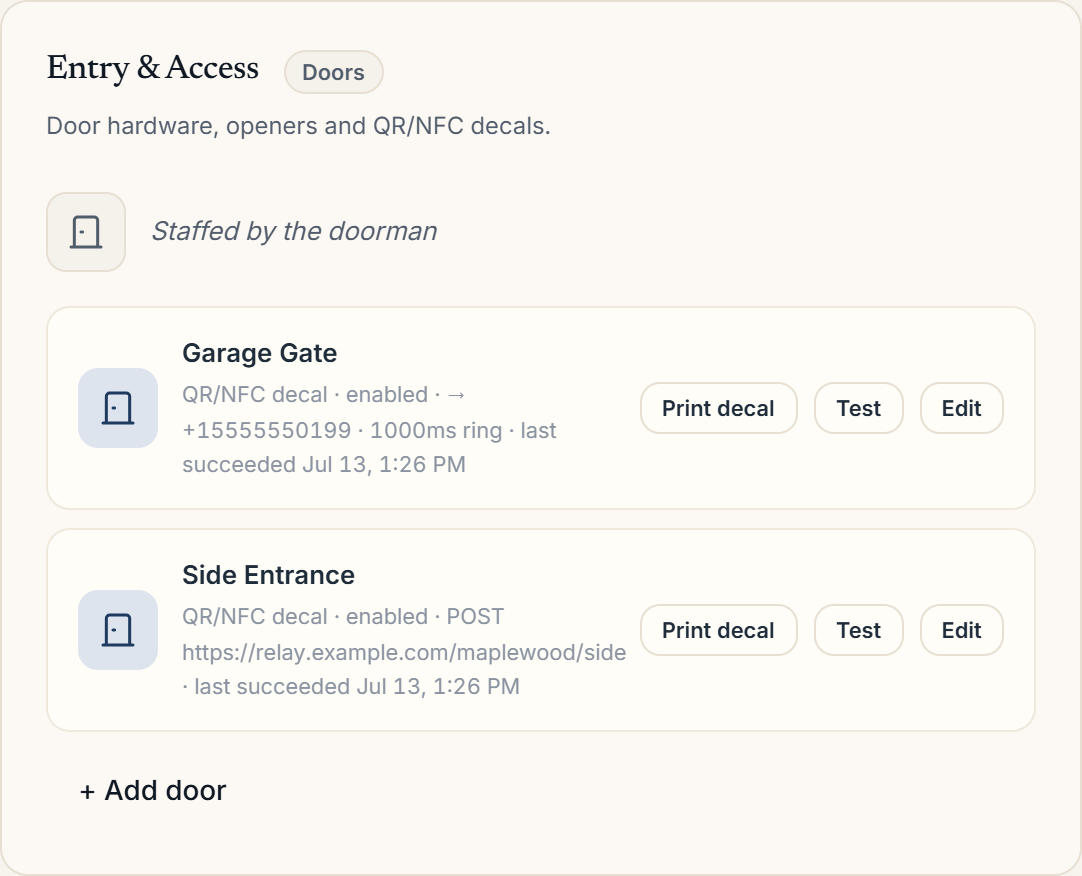 The Doors surface with the front door and secondary doors
The front door
The Front door card shows the door's name, a summary of its opener/relay, and the last unlock status. From here you can Edit it, run Open now (test) to fire the relay, or Enable/Disable it. In front desk mode the card notes that the door is staffed by the front desk.
Adding a secondary door
In the Secondary doors card, choose + Add secondary door and give it a name. After you save, Veni generates a QR/NFC sticker for that door. Each secondary door has its own controls:
- Open now (test): fire the relay to confirm wiring.
- Edit: rename it or change its opener configuration.
- QR sticker: open a printable decal for the entrance.
- Enable/Disable and Delete.
A visitor who scans a secondary door's sticker calls the front desk, and the front desk can see live video and open that specific door from the call.
Legacy openers
If your building was set up in an older version of Veni, unbound openers appear in a Legacy openers callout with options to Re-bind them to a door or Delete them.
More in Buildings
- Setting up a door and pairing an intercom panel2 min read
- Intercom mode vs front desk mode1 min read
- Posting building announcements to residents1 min read
- Printing QR decals for the lobby and doors1 min read
- Configuring a building's settings2 min read