Uploading a building photo
Open a building's Settings tab and find Photo & resident preview under the general settings group. It shows a small thumbnail of the current photo (or a plain branded "V" placeholder if none is set) next to a Preview & upload button. Click it to open the Building photo & resident preview modal.
Inside, click Upload (or Replace if a photo already exists) to choose an image file (JPEG, PNG, HEIC/HEIF, or WEBP). If a photo is set, a Remove button clears it back to the branded placeholder. This image is optional: without one, visitors and residents simply see the branded default instead of a building photo.
Previewing both surfaces
The same modal shows a Live preview with two side-by-side cards:
- Visitor entry: how the building's hero image appears on the visitor-facing entry card
- Tenant home: how the same photo appears behind the resident's home screen, reflecting the building's current mode (intercom or front desk)
Both previews update immediately as you upload or remove a photo, before you save anything else.
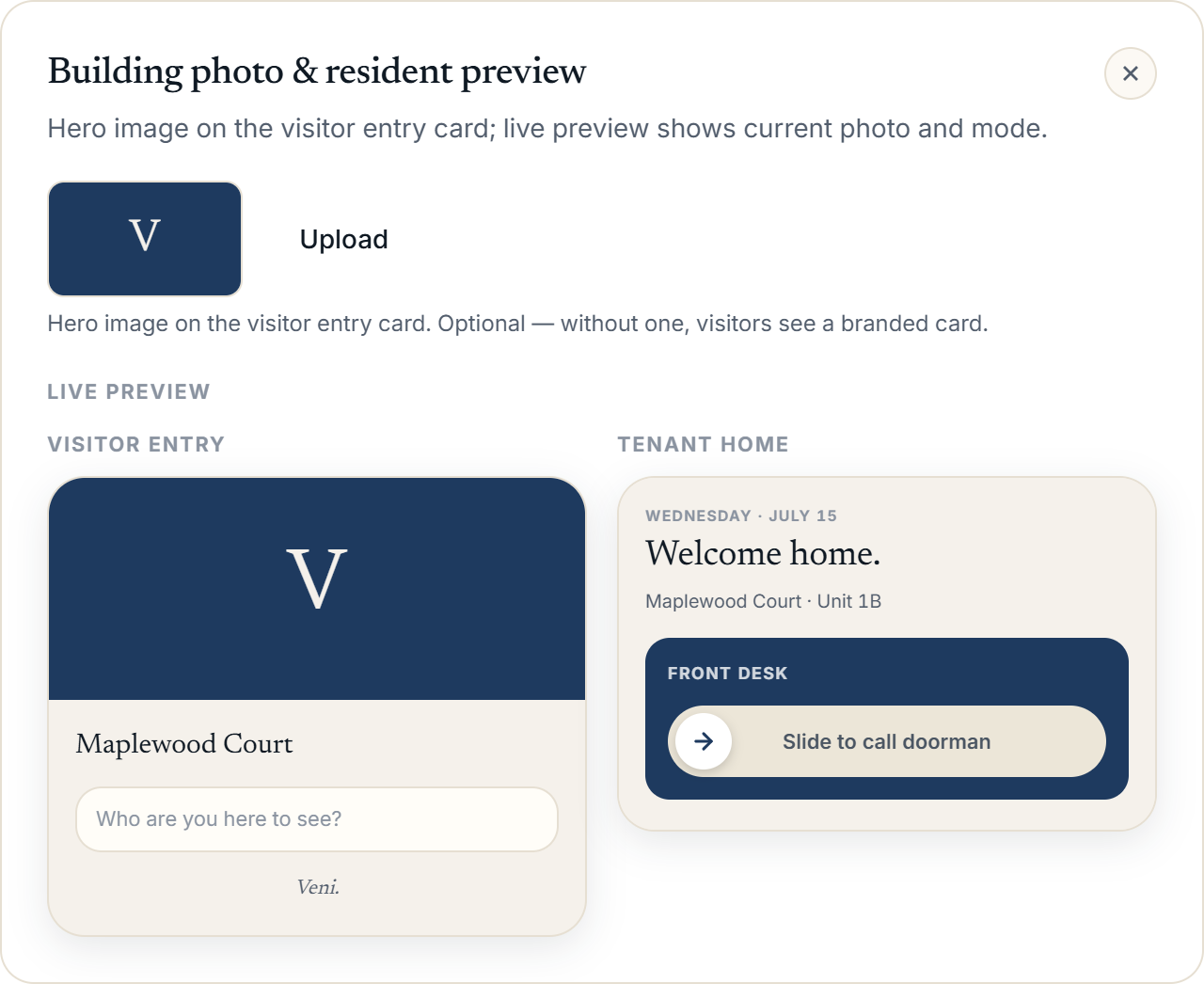 Building photo & resident preview modal with Visitor entry and Tenant home preview side by side
What residents actually see
The resident app's home screen greets the resident by name and shows their building and unit. Below that sits a large door slider: in intercom-mode buildings it reads Slide to open door, in front-desk buildings it reads Slide to call front desk instead. If a building announcement is unread, a banner with a bell icon appears above the door slider with its header and a two-line preview, linking through to the full announcement.
Two quick-action tiles sit below the door slider: Guest pass (showing the count of active passes, or "Pre-approve" if none) and Do not disturb (a toggle showing On or Off). Further down, if the resident has packages waiting, a package banner reads "N package(s) waiting - At the front desk - tap to view" and links to the Packages screen.
More in Residents
- Inviting residents: one at a time or in bulk2 min read
- Tracking resident app adoption1 min read
- Bulk-adding residents from a spreadsheet, CSV, or photo1 min read
- Ending, moving, and reviewing a tenancy1 min read
- Managing units and vacancies1 min read