Residents can add a profile photo in the Veni app. When they do, Veni Front Desk shows it in place of their initials: on the Residents tab and the resident's profile, in search on Now, on the package board and package detail, in the collector picker, on calls, and beside their messages. Residents without a photo, and residents who are Not on Veni, still show their initials.
A photo helps, it is not an ID
Where a resident's photo is shown large, on their profile, on an incoming call and at package handout, it is labelled "Photo added by resident". The resident chose it, so it helps you recognise a regular face but never stands in for an ID check.
At package handout, while the package is at the desk, the photo of whoever is collecting shows large, with a reminder such as "Check it's Sam. Photo added by resident, not an ID." If you pick a different collector, the photo and the reminder follow your choice. Someone else shows no photo.
If a resident changed their photo in the last 7 days, the handout, the incoming call screen and their profile say so ("Photo changed today", "Photo changed yesterday" or "Photo changed 2 days ago"), so a new face is not a surprise.
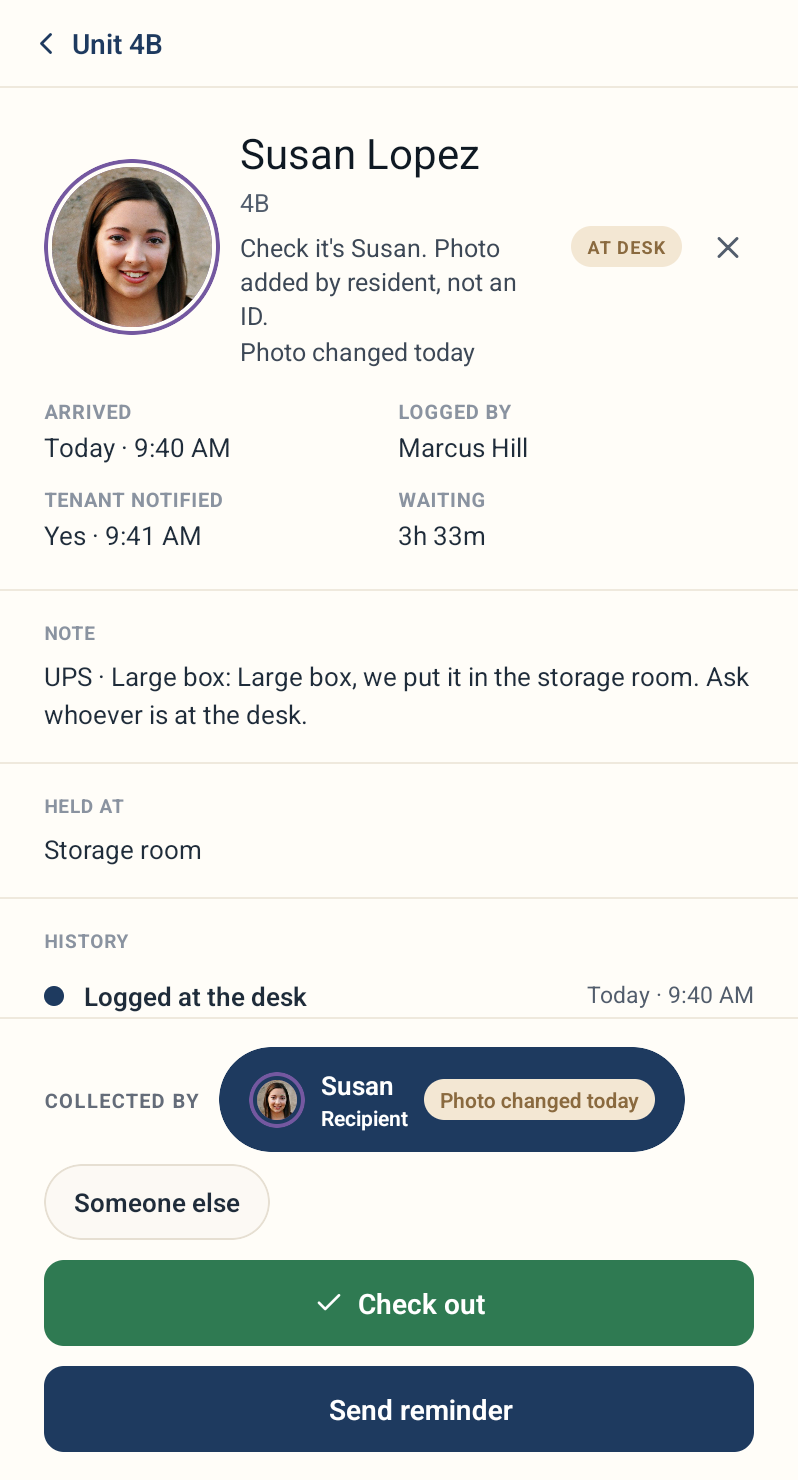 Package handout with the collector's photo and the reminder line
Flagging a photo
If a photo is not of the resident, or is not appropriate, open the resident's profile and tap Flag photo next to the photo label. Pick a reason (Not a photo of this person, Offensive or inappropriate or Something else) and tap Report. You'll see "Thanks. Veni will review this photo." Veni reviews it; management can also remove a resident's photo from the portal.
Your own photo
Front desk staff can add their own photo. Residents see it when you call or message them, and your team sees it on the roster. On the tablet, each message the desk sends shows the photo and name of the person who sent it, so the next person on shift can tell who wrote what.
At the start of a shift, the tablet may offer "Add your photo?" on the Now screen. If the handoff card is showing, it waits until you tap Got it. It never appears during a call, and is offered at most once per shift. It is not offered on a Team coverage shift, which has no roster name to hold a photo.
- Tap Take photo and line your face up in the circle. The tablet uses its front camera.
- Tap Use this photo, or Retake.
Skip for now means the step does not come back on its own. If a call interrupts it, it is offered again at your next shift. The camera closes the moment a call rings.
To add or change your photo later, open the shift menu: tap your avatar in the sidebar, or your name at the top right when the tablet is upright. With no photo, tap Add next to "Add your photo". With a photo, the "Your photo" row has Change and Remove.
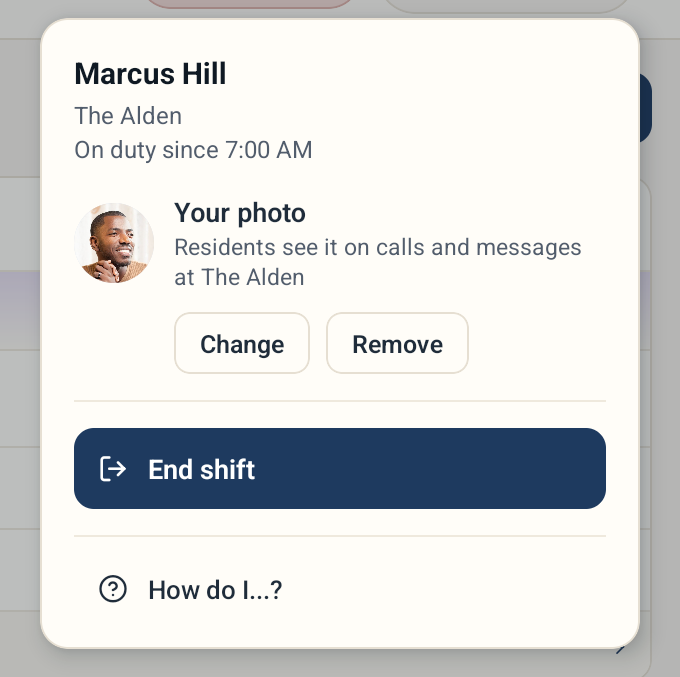 The shift menu with the Your photo row, Change and Remove
On the front desk phone, open Me and tap your avatar. The "Your photo" sheet offers Take a new photo, Choose from library and, once you have a photo, Remove photo.
- If you sign in with your own phone number, the photo belongs to you and shows at every building where you sign in that way. Only you can add or change it. Management can remove it.
- If your desk uses a shared sign-in, pick your own name on the "Who's on duty?" screen first. The photo is for that building only.
Every photo change made at the desk is recorded with the desk device and the shift.
Privacy
Photos are not saved on the tablet. They are kept in memory while the app is open and cleared when the shift ends or the desk signs out. A photo you take of yourself is deleted from the device once it is uploaded or discarded.
More in Front desk