The front desk in Veni is a tablet station for buildings in front-desk mode. The building has one shared desk account (a single sign-in the tablet stays logged into permanently). Individual roster entries are not separate accounts; they identify themselves by tapping their name on the roster at the start of each shift, and that is what attributes their work.
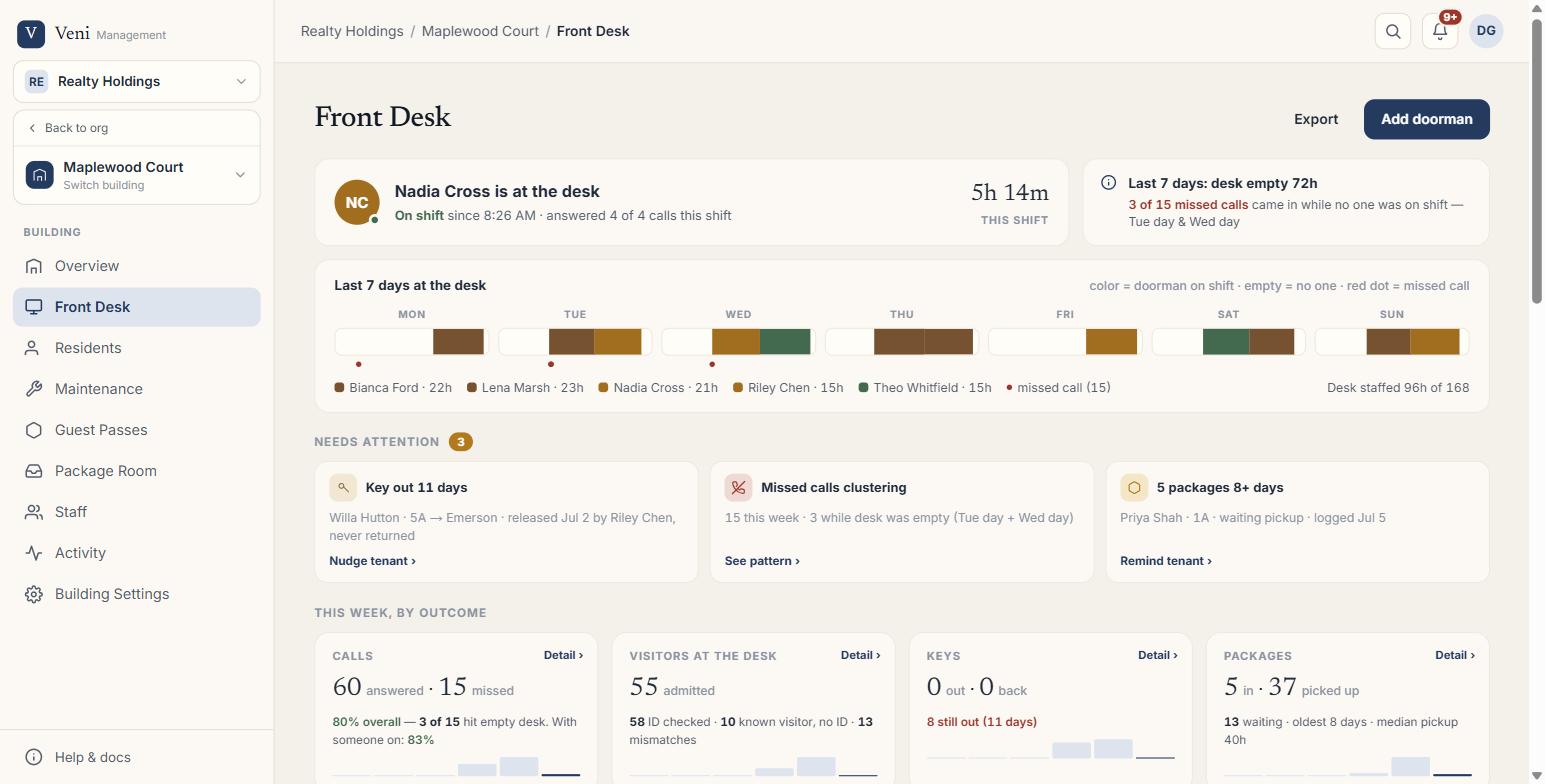 The front desk tablet
Starting a shift
- On the tablet, tap the screen to wake it. It is already signed in.
- Under Who's on duty?, tap your name.
- Your shift opens. Every call, pass approval, package, and message you handle from this point is recorded under your name.
If the person covering the desk is not on the roster, use Team coverage instead. It starts a shift attributed to a label you type, so the desk is never blocked by a missing name.
Starting a shift automatically closes whatever shift was open before it, so you never have to track down the last person to end theirs. Only one shift is open per building at a time.
Nothing at the desk works without an open shift. If you see "No one is on duty. Pick from the roster first.", go back to the roster and start one.
What is on the tablet
Four places, in the sidebar in landscape and along the bottom in portrait:
- Now is the home screen: the day's brief, a live activity feed, and buttons for Doors and Scan pass.
- Residents is the building directory, with a call button and a message thread for each resident.
- Packages is the package log.
- Visitors is the pass scanner.
Admitting a visitor
Most visitors arrive with a guest pass a resident already sent them.
- Open Visitors, or tap Scan pass on the Now screen.
- Point the tablet at the QR code on the visitor's phone. If the code will not scan, tap Enter code manually and type the pass code instead.
- The pass card shows who the pass is for, how long it is valid, how many uses are left, and which unit issued it. Passes for a party show how many people they cover.
- Approve the entry. The arrival is logged against your name and appears in the resident's history.
Veni refuses a pass that has been revoked, has no uses left, or belongs to another building. Approving a pass does not unlock anything by itself: you let the visitor in the way you always have. The Doors button on the Now screen is the one place that actually releases a door.
ID checks
Whether you check ID depends on a building setting with three states, so a building may show none of this.
- Off: approve the entry, no ID step.
- Optional: approve the entry, with Scan ID first available if you want it.
- Required: you must record an ID result before Veni will let you approve. This is enforced by the server, not just hidden on the screen.
ID checks use the Bluetooth barcode scanner paired to the desk, which reads the barcode on the back of a driver's licence or state ID. The tablet's own camera faces you, not the counter, and is used only for scanning pass QR codes, so it cannot read an ID barcode. Passports and most non-US IDs have no scannable barcode.
Veni reads the name off the ID and compares it to the name on the pass.
- The names match: approve as normal.
- The names do not match: deny entry, or choose Override and approve with reason and write a short note. The override is logged against your name.
- You cannot scan at all: choose Can't scan an ID? and pick a reason: the visitor has no ID, you know this person, the resident confirmed them, or the scanner is not working. The entry is recorded as "ID not verified" with that reason, and both the resident and the management office see it.
No picture of the ID is taken or stored. Veni keeps the name, encrypted, along with the result of the check and a few facts about the document itself: the issuing state, whether it is REAL ID compliant, whether it is a licence or a non-driver card, and the month it expires. Date of birth, licence number, and address are read on the device and discarded immediately. The record deletes itself after the building's retention window, which is 30, 60, or 90 days.
Vendors
If the building uses vendor compliance forms, a vendor pass cannot be approved until the vendor has signed the building's access form, and a key cannot be released to them either. Neither is a rule you can wave through; Veni refuses both.
When a vendor arrives without a signed form, tap Show sign-on link. The tablet displays a QR code the vendor scans with their own phone, and they sign there. The desk updates by itself once they have. A signed form shows on the pass with the signer's name.
Key handoffs
On buildings with key exchange enabled, a resident can authorize the desk to lend their unit key to a guest. You will see a banner on the pass saying the resident agreed to the key terms.
- Check the visitor's ID if the building asks for it.
- Release the key. Veni records that it is out, and when it is expected back.
- When the key comes back, open the same pass and confirm the return.
A pass can only have one key out at a time. Keys currently out are listed on the Visitors screen.
Answering calls
Calls from door panels and from residents ring on the tablet like a phone call. Most calls are audio only: you get the caller's name, mute and speaker controls, notes, and End call.
Calls from a secondary door are the exception. Those show live video from the door, and only those carry an Open door button on the call screen. For every other call, use Doors on the Now screen when you need to release a door.
You can call a resident back from the activity feed, from their profile, or from the Residents directory. If the building has VeniAI turned on, Veni writes the call summary for you after the call ends; otherwise you can add notes yourself during the call.
Missed calls appear in the activity feed, which shows who called, which door, and when.
Packages
Log a package from the Packages screen with Add package. Pick the resident, optionally scan the shipping label, and tag it with the carrier, size, handling, and where you are putting it. The resident is notified automatically when you save. See *Logging and notifying residents about packages* for the full workflow.
Messaging a resident
Open Residents, find the person, and use their message thread. The composer has quick messages, which are pre-written lines the building sets up, so common notes are one tap. Quick messages live in the thread composer, not on the home screen.
Ending a shift
Tap your avatar and choose End shift. If the building has VeniAI turned on, Veni drafts a short handoff note for the next person covering the desk. You can edit it, replace it, or end your shift without one.
Managing the front desk roster
In the management portal, open the building and go to Settings. The Front desk sign-in card holds both the shared tablet sign-in and the on-duty roster. People can also be added from the organization-wide People & Access page on the Front desk tab; it is the same roster either way.
Adding someone by name puts them in the shift picker on the tablet. They do not receive an invite or an account, because the desk sign-in is shared. Removing someone stops future shifts and leaves historical records untouched.
The desk sign-in itself is created and rotated on that same card. Rotating the passphrase signs the tablet out, so someone has to enter the new one at the desk.
More in Front desk