The Notifications tab in Settings lets you choose which events send you an in-app notification. Open Settings, then select the Notifications tab.
The notification preferences table
The table lists six event types, each with a short description and a toggle in the In-app column:
- Tenant messages: a resident sends a direct message to management.
- Maintenance updates: a request changes status or gets a new message.
- Alert rule triggers: immediate notice when an alert rule fires.
- New tenant joins: when a resident accepts an invitation.
- Door opener failures: consecutive unlock failures on a door.
- Missed calls: a visitor call goes unanswered.
Click a toggle to switch it on or off. The change saves immediately and reflects on the page right away.
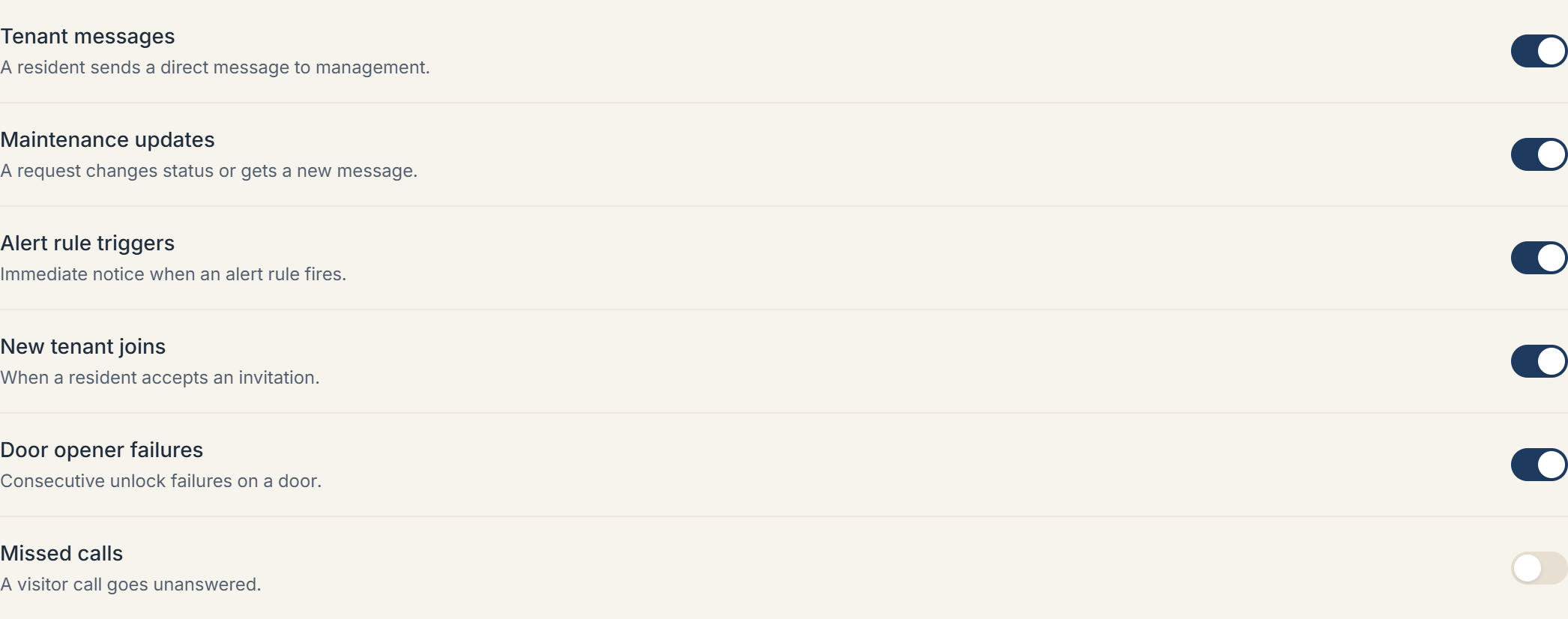 The Notifications tab showing the table of event rows each with a description and an In-app toggle
Where notifications are sent
Notifications go to the phone and email on file for your account, which you set on the Profile tab (also in Settings). There you can update your Name and Phone (used for account notifications; enter a US number like +14155550100). Email is shown read-only there since it's your sign-in email, managed through your account rather than this page.
Keeping your phone number current on the Profile tab ensures the notifications you've enabled here actually reach you.
More in Getting started
- Adding your first building2 min read
- Getting started with Veni2 min read
- Inviting your team: staff, supers, and front desk3 min read
- Reading your dashboard and Daily Briefing2 min read
- Organizations, portfolios, and switching buildings1 min read