The People & Access page (/access) is the single place to invite and manage every person in your organization: portal staff, building supers, front desk, and residents. This article covers the staff and operations roles. For residents, see *Inviting residents: one at a time or in bulk*.
Open People & Access
Select People & Access in the left sidebar. The page shows a unified roster with five tabs: All people, Residents, Building supers, Front desk, and Org staff. Pending invites appear above the active roster until each person accepts.
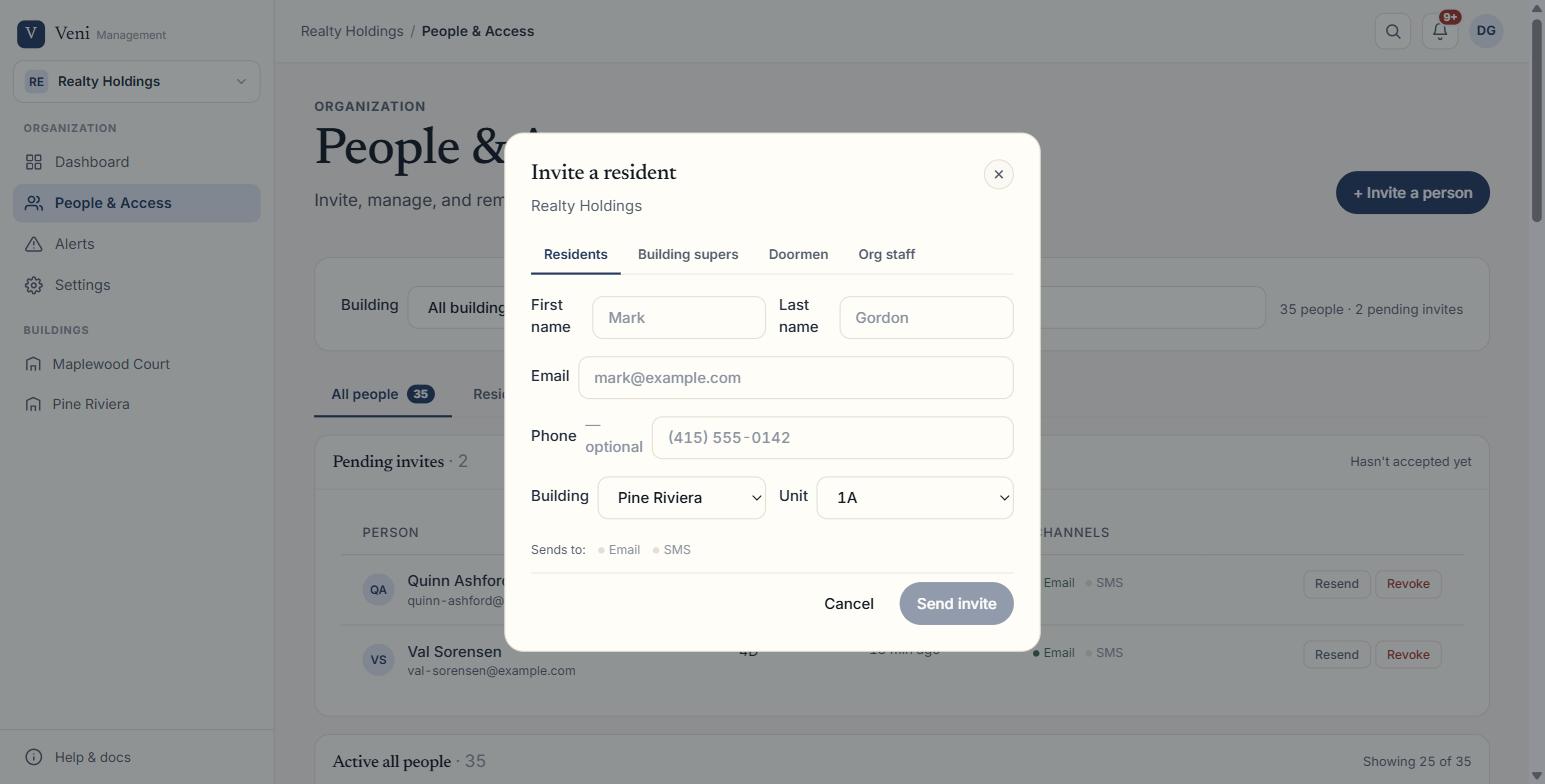 The People & Access roster
Invite a portal staff member
Portal staff can sign into the management portal and help manage buildings day-to-day.
- Choose + Invite a person (top right). A modal opens titled Invite a resident.
- Switch to the Org staff tab inside the modal.
- Fill in First name, Last name, and Email (phone is optional).
- Pick a Role:
- Management Admin; full access: can invite people, create buildings, and change billing.
- Management Staff; limited access: day-to-day operational access without admin controls.
- Click Send invite. The person receives an email and appears under Pending invites until they accept.
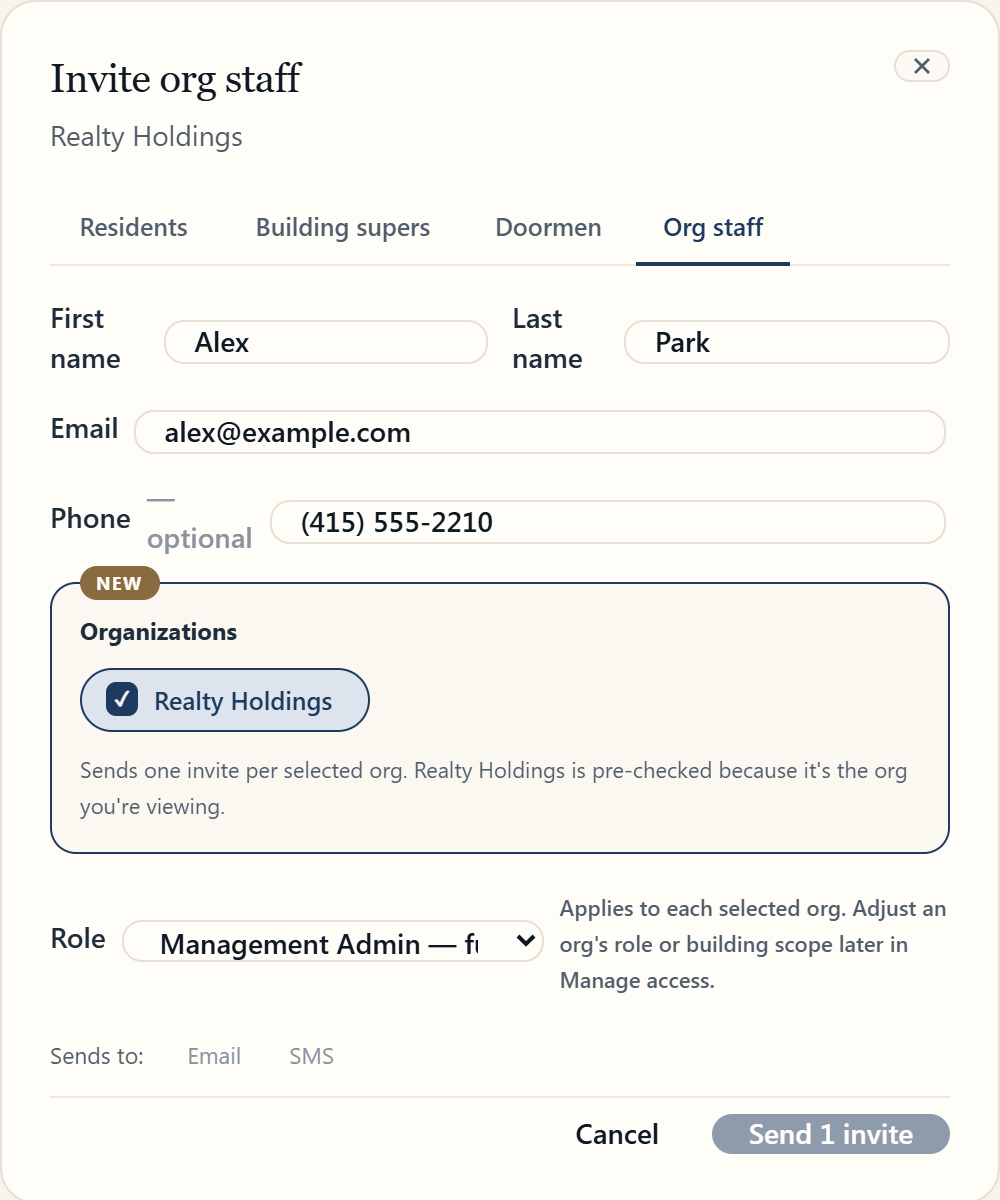 Inviting portal staff
After a staff member accepts, open their row and choose Manage access to scope which buildings they can see: either all buildings in the organization or a specific subset.
Add a building super
Building supers receive and handle the maintenance requests residents report through Veni. Two things are required before you can add one: the Maintenance add-on on your plan, and admin access.
- Choose + Invite a person and switch to Building supers.
- Enter the super's name, email, and optionally phone.
- Select which Building they cover.
- Click Send invite.
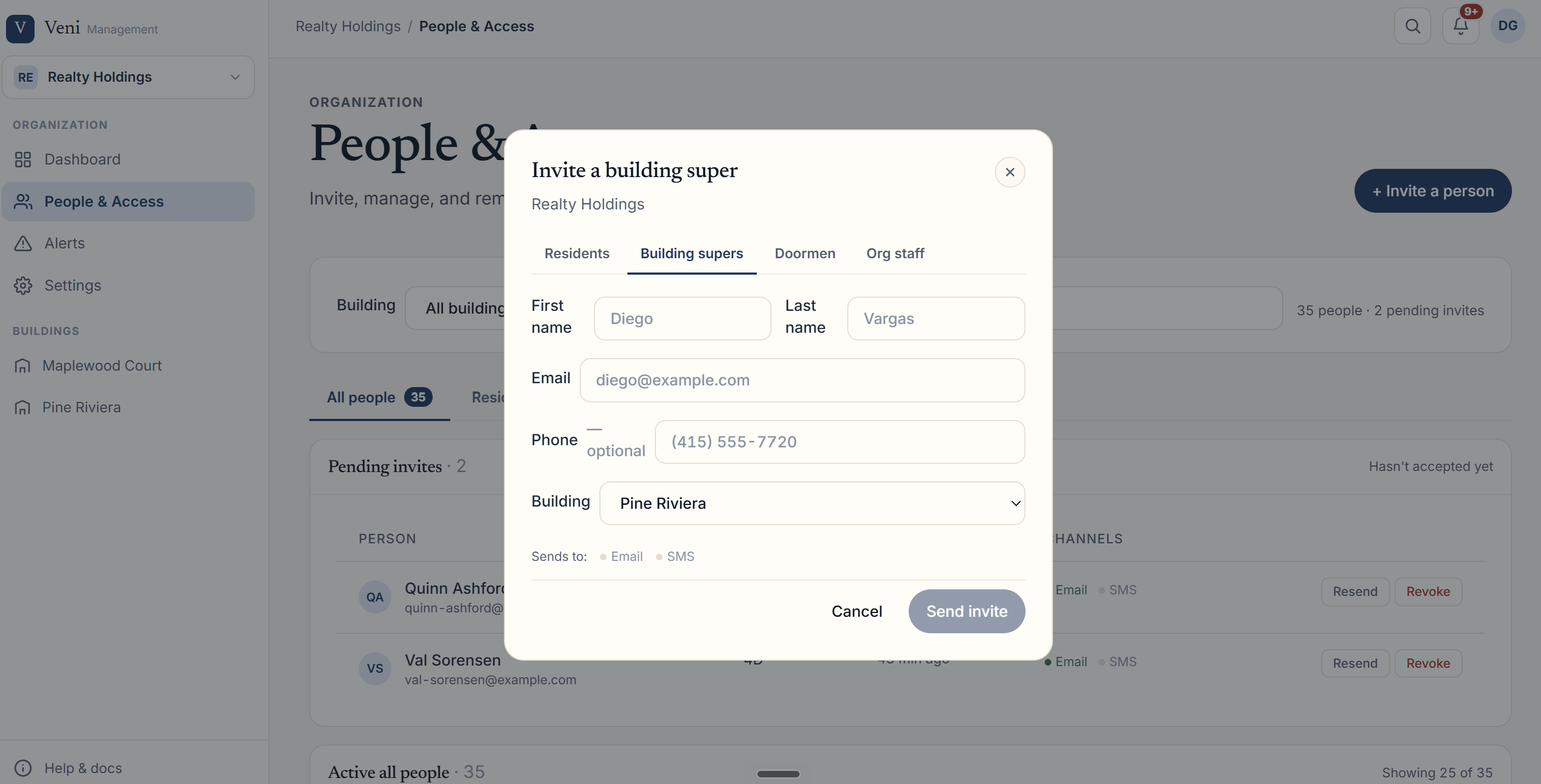 Adding a building super
The super gets an email titled "You're on call for {your building}" that points them to install the Veni app. Supers work in the resident app rather than the management portal, and a Maintenance tab appears for them once they are assigned.
There is no accept link to click. When they sign in with the email or phone you entered, their building assignment attaches automatically. If the person already lives in that building, you can promote them to super from their row instead of sending a new invite.
One super can cover several buildings, and a building can have several supers. How work reaches them, whether it is auto-assigned, offered to everyone at once, or left for you to route by hand, is set per building on that building's Maintenance tab.
Add to the front desk roster
People on the front desk roster work the tablet and do not receive an account invite; the tablet uses one shared sign-in for the whole building. Each person taps their own name on the iPad at shift start, and that is what attributes their work.
- Choose + Invite a person and switch to Front desk.
- Enter First name and Last name (required). Email and phone are optional and kept for your contact use only.
- Select the Building they work at.
- Click Add to roster. The name is immediately available on that building's tablet.
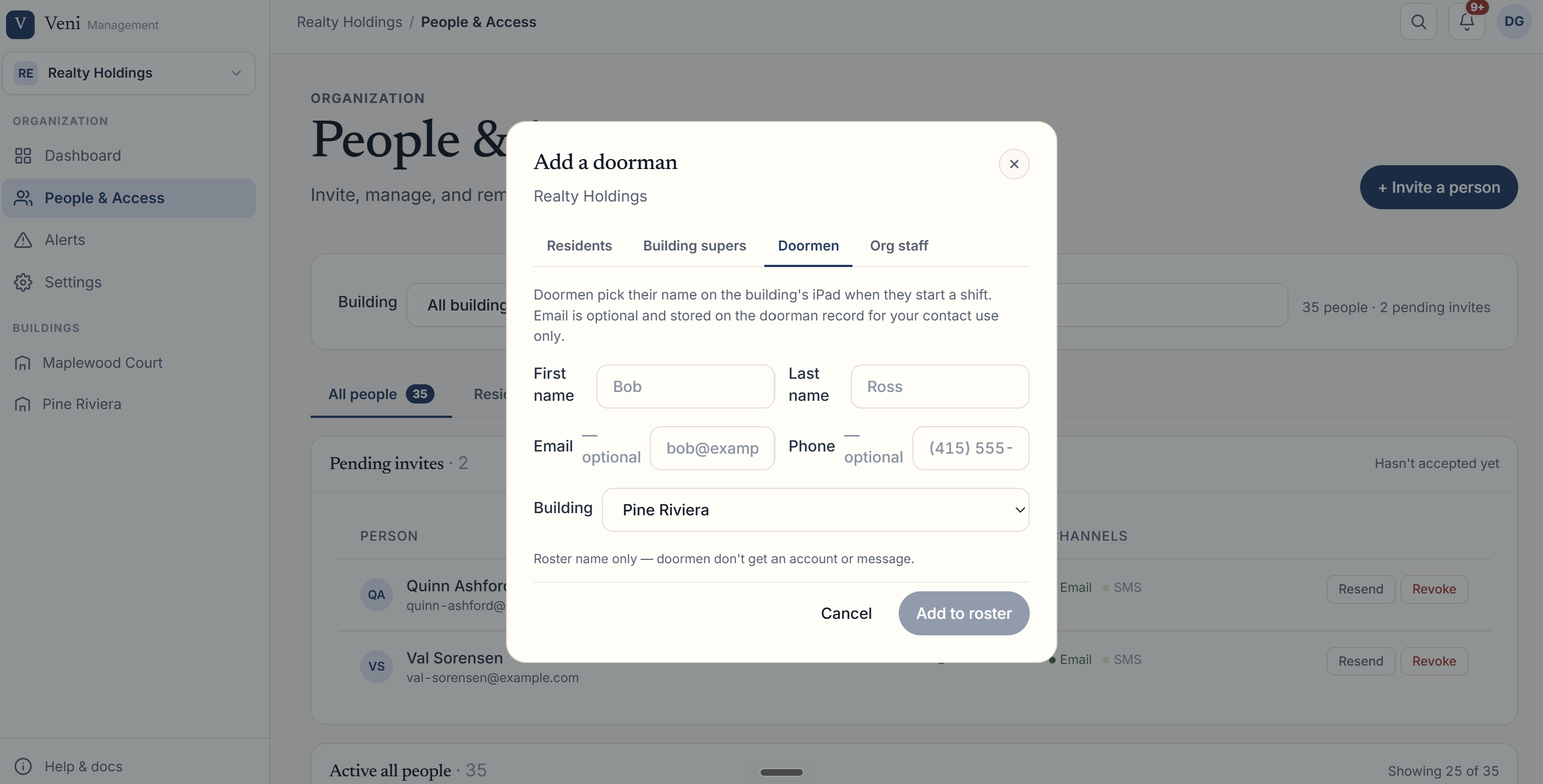 Adding someone to the front desk roster
Removing someone from the roster stops future shifts and leaves their past records intact. The shared desk sign-in itself is created and rotated separately, on the building's Access tab. See *Running the front desk* for how a shift actually works.
Managing access after invite
For any active person in the roster, select Manage access on their row. From that modal you can:
- Change their Organization role (None / Staff / Admin, plus Board in HOA-mode organizations); takes effect on their next sign-in.
- Toggle Building super assignments per building.
- View or end their Residency tenancies.
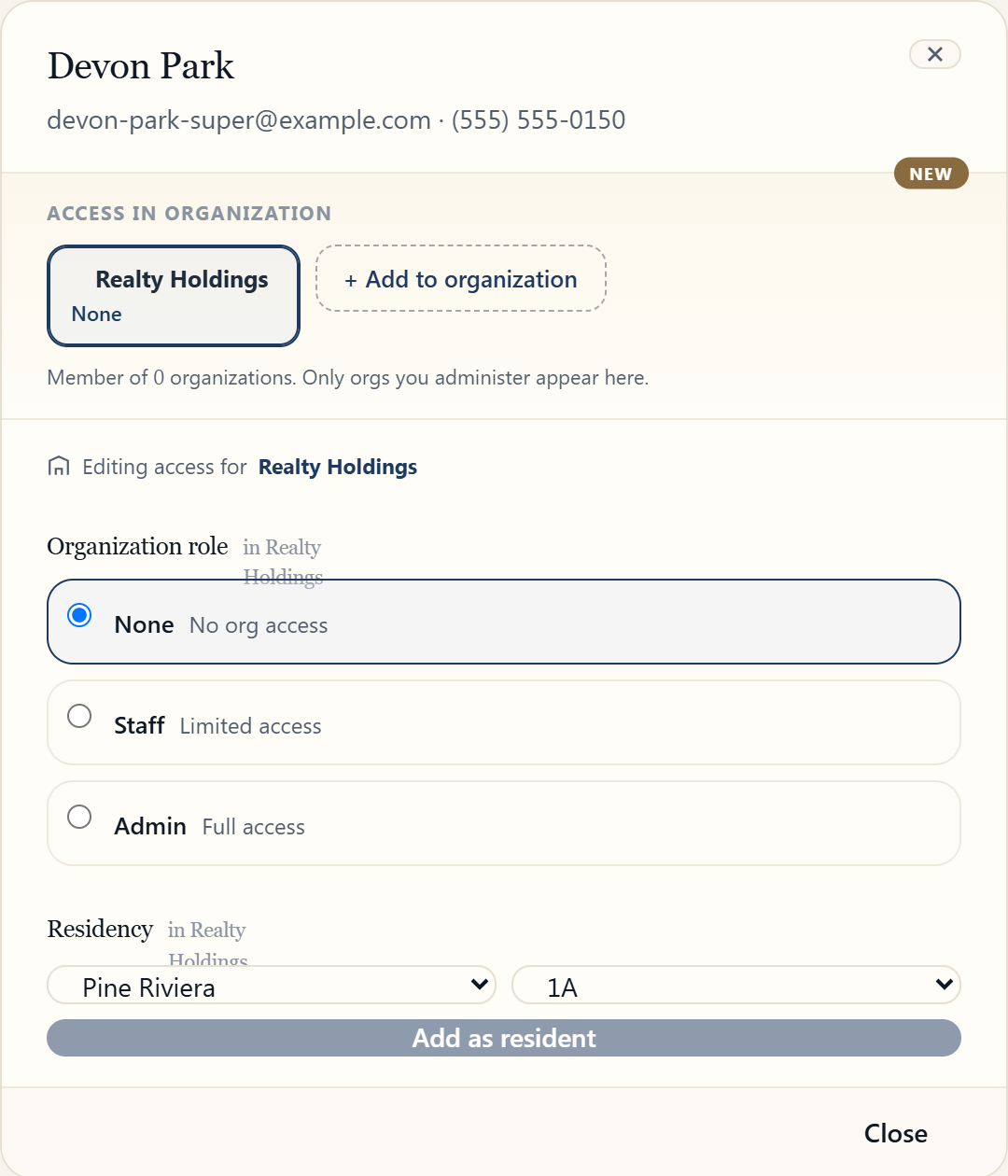 Managing a person's access
A single person can hold more than one of these at once. Someone can be a resident of one building and the super of another, and Veni keeps those roles separate.
More in Getting started
- Adding your first building2 min read
- Getting started with Veni2 min read
- Reading your dashboard and Daily Briefing2 min read
- Organizations, portfolios, and switching buildings1 min read
- Managing people and access2 min read