The Dashboard is the first thing you see when you sign in to the management portal. It pulls together everything happening across your portfolio so you know where to look before you open a single building.
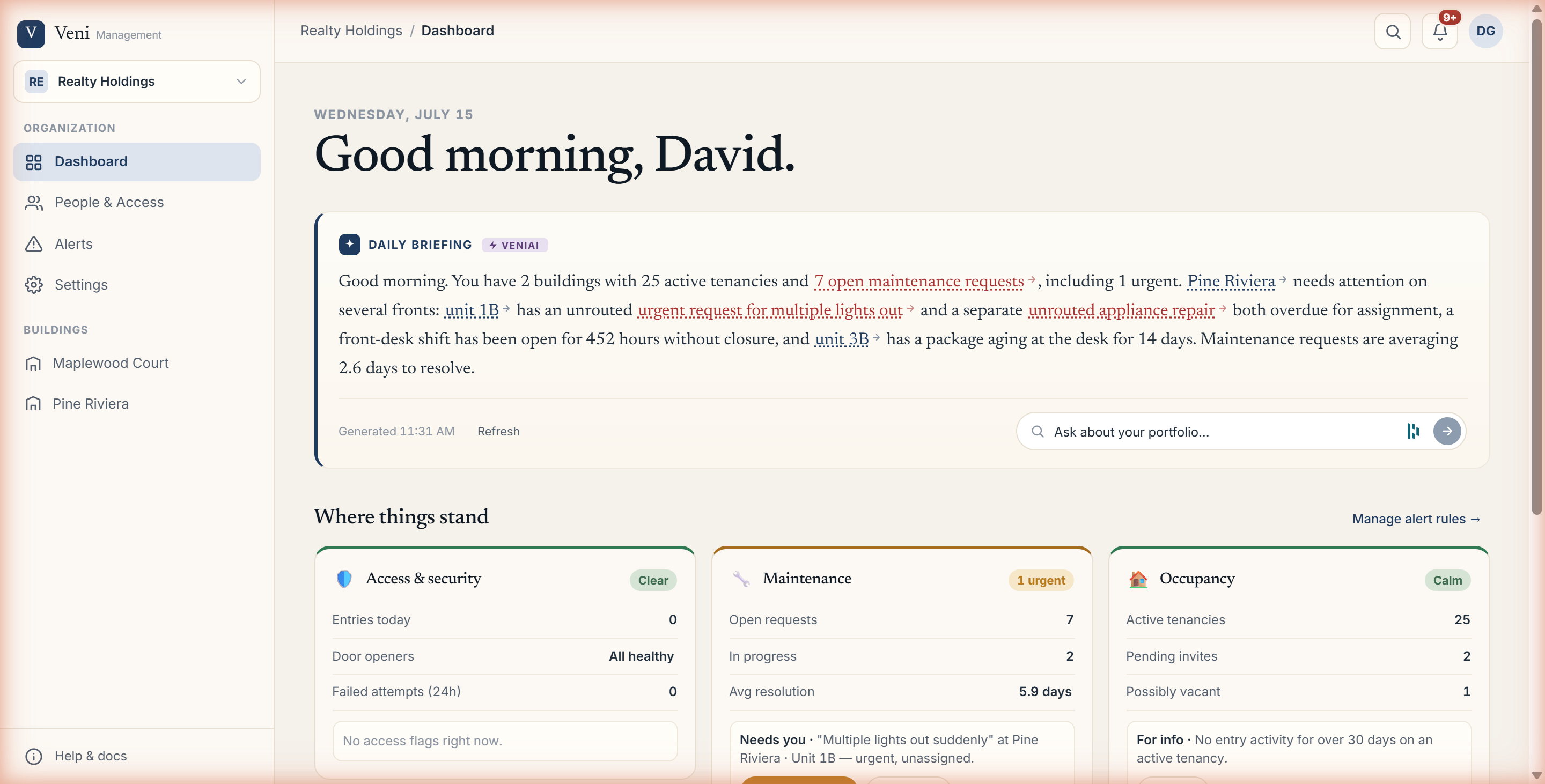 The portfolio dashboard with the Daily Briefing and triage cards
The Daily Briefing
At the top of the Dashboard is the Daily Briefing, written for you by Veni AI. It reads your portfolio's overnight activity and summarizes what needs attention in plain language; open maintenance requests, a front-desk shift that has been open too long, a package aging at a desk, occupancy changes. Underlined phrases are live links that jump you straight to the item.
- Generated {time} shows when the briefing last ran. Click Refresh to regenerate it on demand.
- Use the Ask about your portfolio… box to ask a question in your own words, for example, "Which units have packages waiting more than a week?" Answers cite the records they came from and offer Ask next follow-up chips.
Where things stand
Below the briefing, three triage lanes summarize the health of your portfolio:
- Access & security: entries today, opener health, and any failed-entry flags.
- Maintenance: open requests, how many are in progress, and average resolution time.
- Occupancy: active tenancies, pending invites, and possibly-vacant units.
Each lane surfaces the specific items that need you, with a button to act. Manage alert rules → takes you to Alerts, where you decide which events surface here.
Your buildings
The Buildings section lists every building in the current organization. Each row shows a 7-day entry sparkline, today's entry count, and a health pill:
- Healthy (green): openers online, nothing flagged.
- Alert (amber): something needs a look.
- No opener (gray): no door hardware is configured yet.
Click any building to drop into its Overview. Use + New to add another building to this organization.
More in Getting started
- Adding your first building2 min read
- Getting started with Veni2 min read
- Inviting your team: staff, supers, and front desk3 min read
- Organizations, portfolios, and switching buildings1 min read
- Managing people and access2 min read