A building holds all the doors, residents, staff, and activity for one property. Once it exists you can start adding doors, inviting residents, and going live.
Open the Buildings directory
Go to Buildings in the left sidebar. The directory shows every building your organization has, with unit counts, tenant counts, and opener health at a glance.
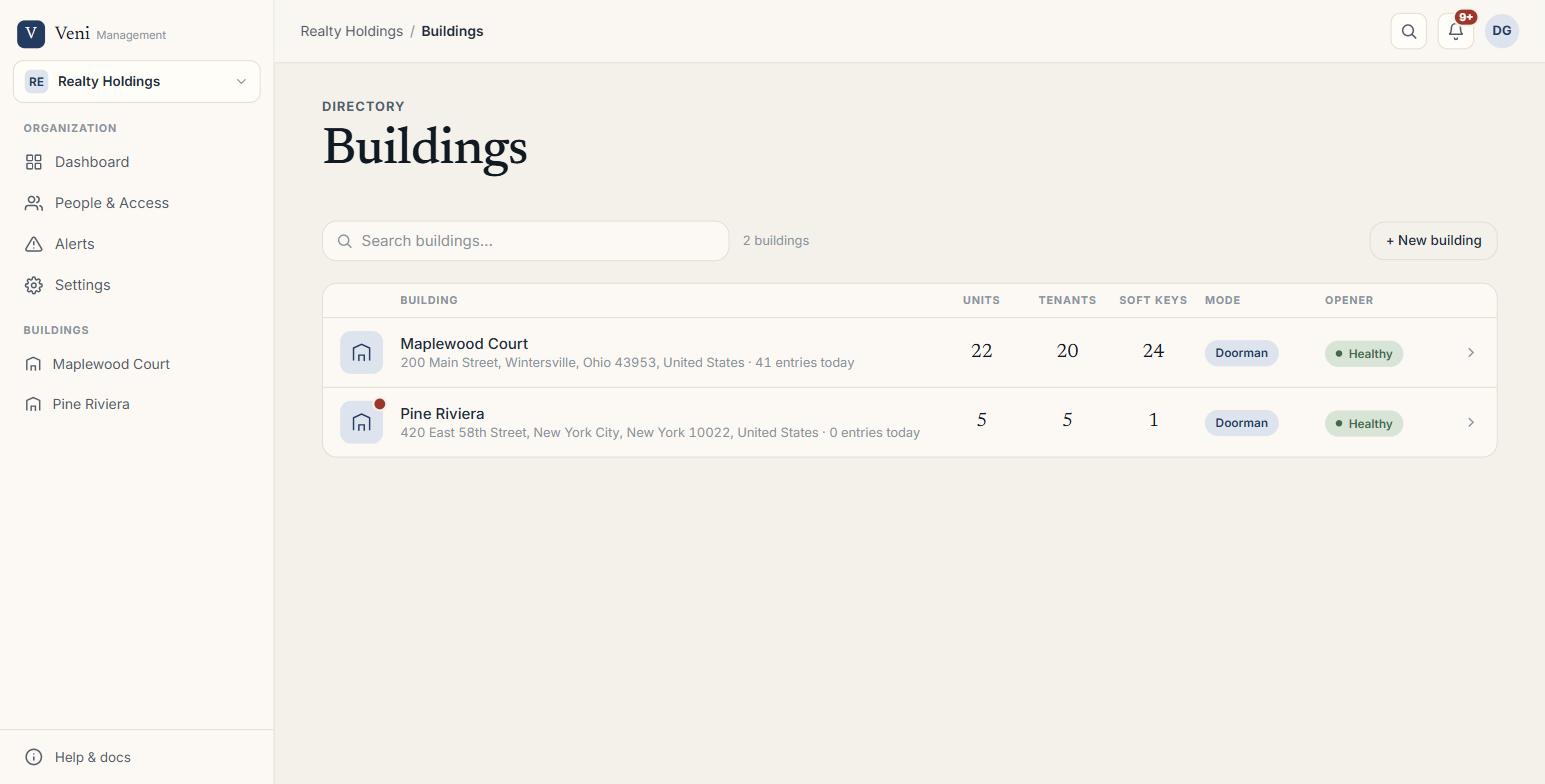 The Buildings directory
Create the building
Select + New building. A modal appears with three fields:
- Organization: the org the building belongs to (pre-selected to your active org; only shown if you administer more than one).
- Building name: a short display name, for example
200 Main Street. This name appears throughout the portal and in the resident app. - Address: type the address and pick a suggestion from the autocomplete list. The address must be selected from the suggestions before you can save.
Click Create building when all three fields are filled. The building appears in the directory immediately.
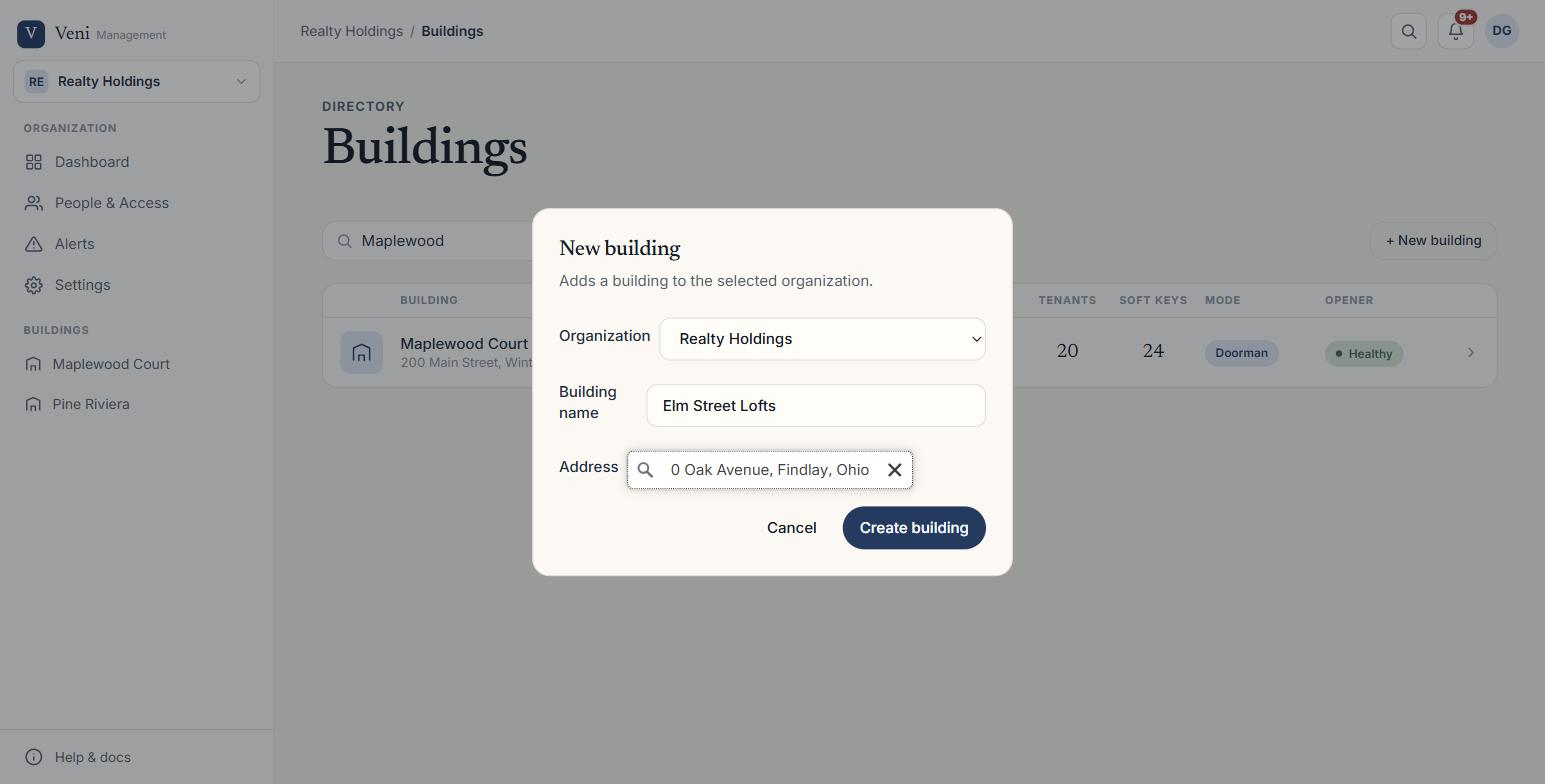 Creating a new building
Choose a building mode
Building mode is set on the building's Overview tab after creation. Two modes are available:
- Intercom: residents open doors from the Veni app after receiving a call from the panel. No staffed desk.
- Front desk: adds a staffed desk with shift tracking, a package room, visitor logging, and a tablet app.
Mode affects which tabs are visible in the building (Front Desk and Package Room tabs are front-desk-only).
What to do next
After the building is created:
- Add doors: open the building and go to the Doors tab to create each entry point and optionally pair an intercom panel. See the *Setting up a door and pairing an intercom panel* article.
- Invite residents: use the Residents tab to invite people one at a time, or Bulk Add Residents for a full move-in list.
- Add staff: go to People & Access in the sidebar to invite building supers or portal staff, or add to the front desk roster.
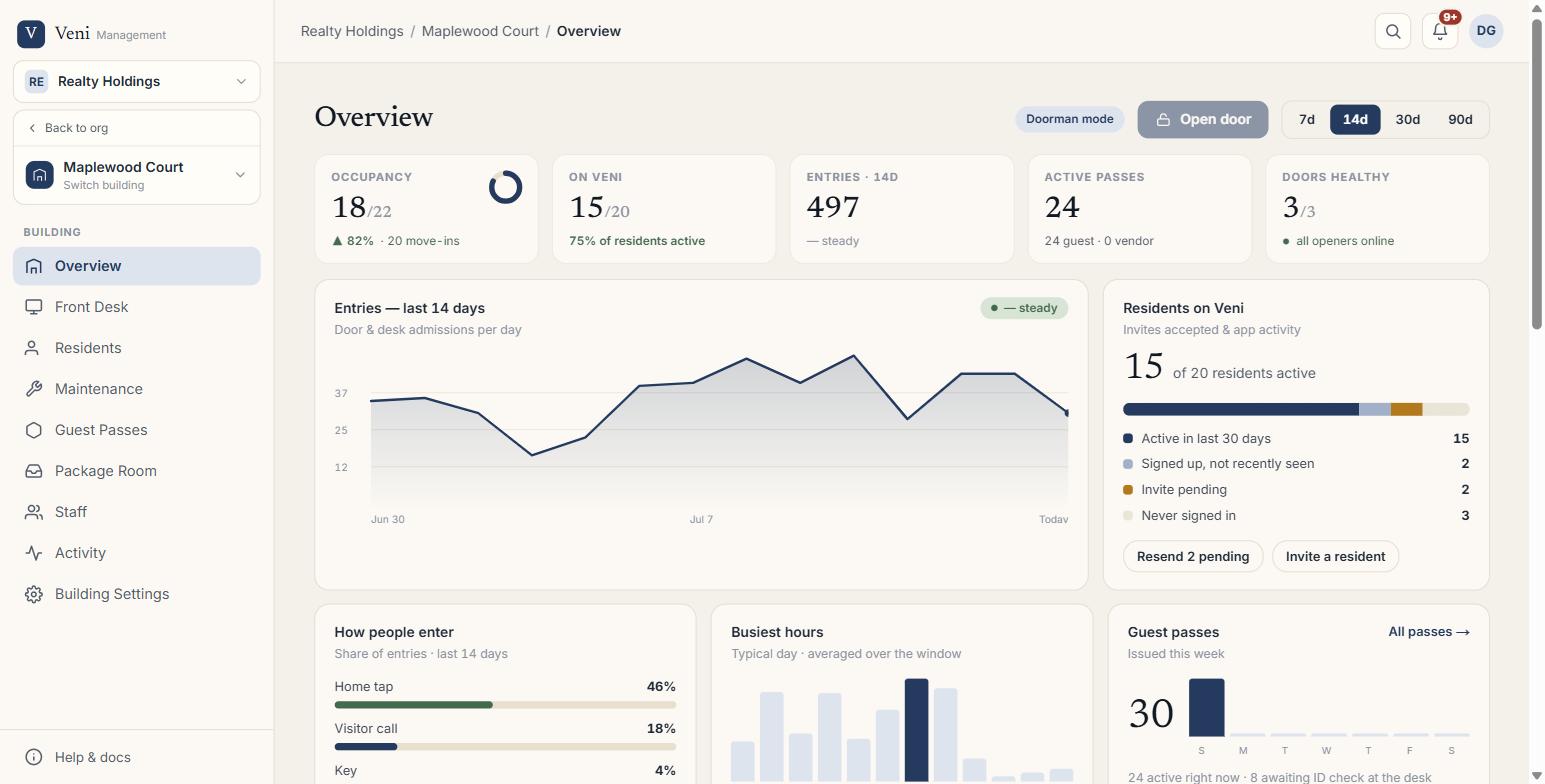 The building overview
More in Getting started
- Getting started with Veni2 min read
- Inviting your team: staff, supers, and front desk3 min read
- Reading your dashboard and Daily Briefing2 min read
- Organizations, portfolios, and switching buildings1 min read
- Managing people and access2 min read