Management admins and staff can message any resident who is on Veni, and the building's supers, from the management portal. In a front desk mode building, the front desk also has a private conversation with each resident in Veni Front Desk. Residents read and answer both in the Community tab of the Veni app (see Messaging in the Veni app: the Community tab).
A resident who is Not on Veni cannot be messaged, by management or by the front desk. Their profile has no Message button and explains what works without the app. Invite them to Veni first.
Messaging a resident from the portal
- Open the building and go to Residents.
- Click the resident to open their profile.
- Click Message. A conversation window opens with your history with that resident.
- Type your message and press Enter, or click the send arrow. Messages can be up to 2,000 characters.
The resident gets a push notification (unless they turned community notifications off) and finds the conversation under Management in their app. Your messages are signed with your name and your organization, for example "Dana Reyes · Parkline Management".
Each conversation is between you and that resident. Another manager in your organization does not see it, and a colleague who messages the same resident has a separate conversation.
The portal window shows text only. If a resident attaches a photo, video or GIF, it does not show in the portal; ask them to describe it, or to send it with a maintenance request if it is about a repair.
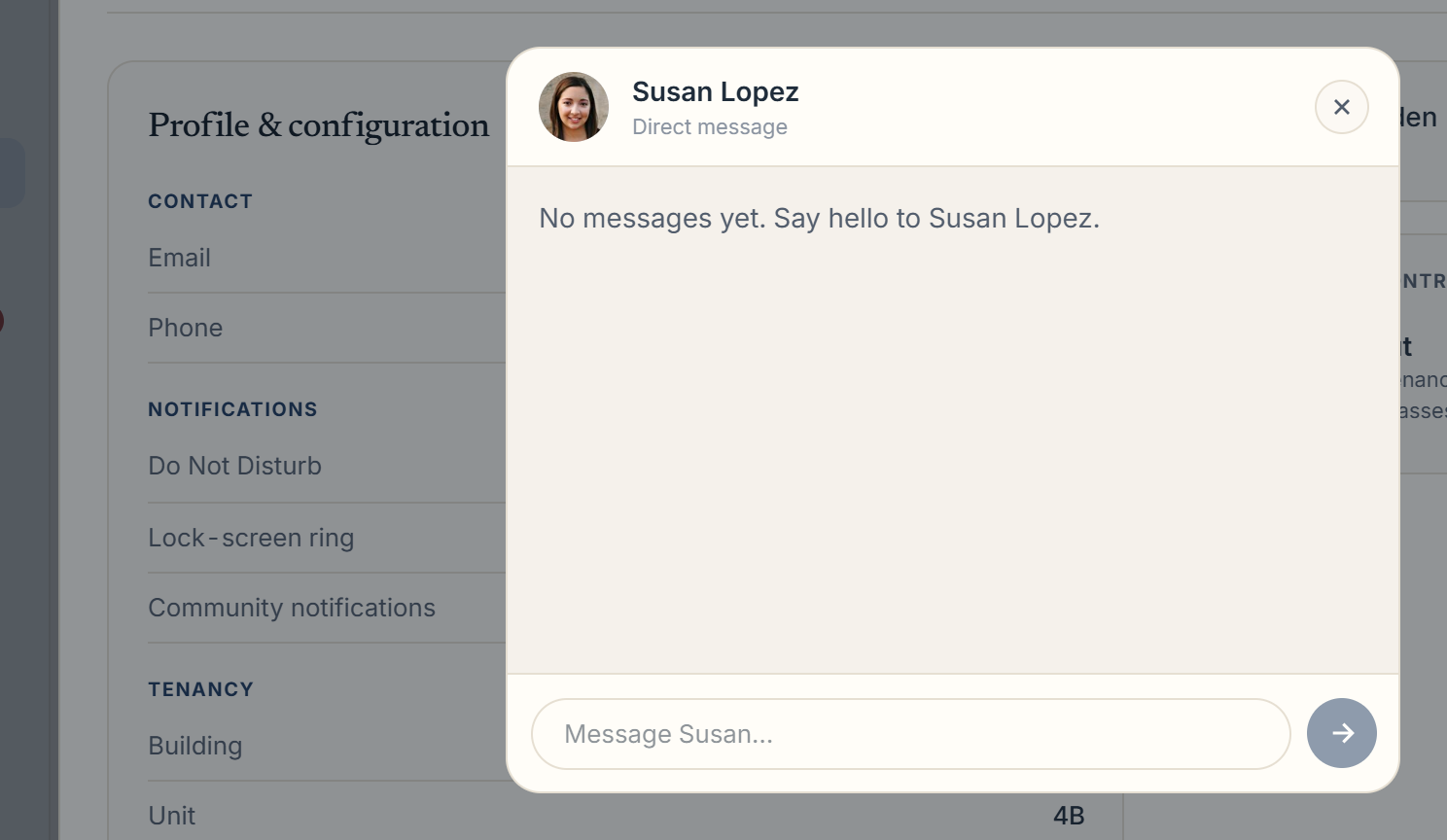 A resident's profile with the Message window open
Messaging a super
Go to People & Access, choose Building supers, and click Message on the super's row. Supers read and answer in the Veni app, under Management.
Seeing new messages
- The bell in the top bar shows a red count. Open it and choose the Messages tab to see each resident or super with unread messages; click one to go to them.
- On the Residents tab, a resident with unread messages has a red count, and their Message button shows it too.
- Opening the conversation clears the count. Mark all read in the bell clears Activity items only.
The bell covers every building you manage.
Messaging residents from the front desk
In a front desk mode building, each resident on Veni has one private conversation with the desk. It appears in the resident's app as Front desk. On the tablet:
- Go to Residents and open the resident.
- Tap Message, or open the Messages tab on their profile.
- Type in the message box, or tap one of the quick message chips above it. More shows every quick message.
- Tap send.
The desk can attach photos, videos and GIFs. Press and hold a message to react or to choose Reply in thread; a message with replies shows a count such as "1 reply". The resident gets a push for desk messages, and for the desk's replies and reactions to their own messages, depending on their notification setting.
Desk messages are signed with the name of the person on shift, for example "Jordan · Front desk". At a shared sign-in desk, that is the name the person tapped on the "Who's on duty?" screen at the start of the shift.
The tablet gets no push notifications for messages. Instead:
- The Residents tab shows the number of unread messages, and each resident's row has its own count.
- A new message appears in the Now feed with Reply, Call and Timeline buttons.
- When the latest message in a conversation in the last 72 hours came from the resident, Happening today lists them under Heads up as "waiting on a reply", marked "NEEDS REPLY", until the desk answers in the conversation. Automatic package notices do not count.
Management sets the quick messages in Building Settings, under Front desk & VeniAI: Quick messages, then Manage.
The desk cannot see the building board or residents' messages to each other, and cannot message management or supers from the tablet. The front desk phone has no messaging; its Send reminder for a package posts the reminder into the resident's front desk conversation.
What management sees of front desk conversations
A conversation between a resident and the front desk stays between them: management cannot open it or reply in it. On the building's Front Desk tab, the activity feed shows a short preview of each resident's latest message to the desk, and the feed's Export includes it.
In intercom mode there is no front desk conversation. Messaging from the portal works the same in both modes.
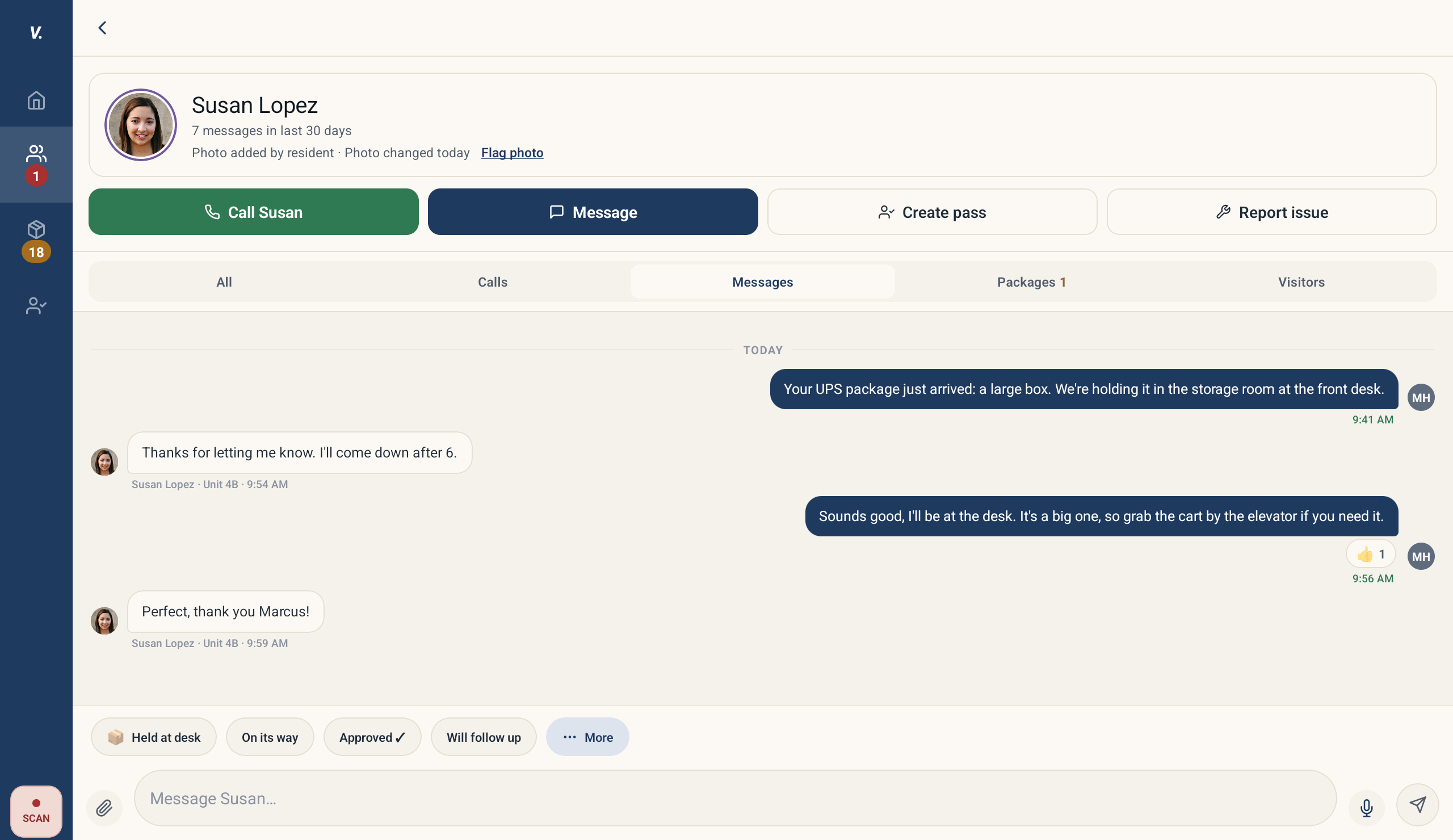 The Messages tab on a resident's profile on the desk tablet, with a reaction
More in Residents
- Adding residents: one at a time or in bulk3 min read
- Tracking resident app adoption2 min read
- Bulk-adding residents from a spreadsheet, CSV, or photo3 min read
- Ending, moving, and reviewing a tenancy3 min read
- Managing units and vacancies1 min read