Residents message their building from the Community tab of the Veni app. Depending on the building, they can post on the building board, write to neighbors, message building management and, in front desk mode, message the front desk. This article walks through what residents see, so you can answer their questions. What management and the front desk see is in Messaging residents from the portal and the front desk.
A resident who is Not on Veni has no app, so none of this reaches them. Messaging is part of Veni's Community feature, so it needs a plan that includes Community.
What's on the Community tab
For each building where the resident has a unit, the tab shows the building's name and these rows:
- Building board: one shared conversation for the building's residents. Only current residents of the building can read and post. Management, supers and the front desk do not see it.
- Front desk: the resident's private conversation with the front desk. It appears only in front desk mode buildings. An intercom mode building has no Front desk row; everything else is the same in both modes.
- Management: building announcements, plus conversations with the property managers and staff who look after the building.
Below the buildings, the Neighbors list holds the resident's direct messages with other residents. Each row shows the newest message and a count of unread ones.
An account with no unit of its own, such as a super, sees only Management for each building it covers: no board, no front desk and no neighbors.
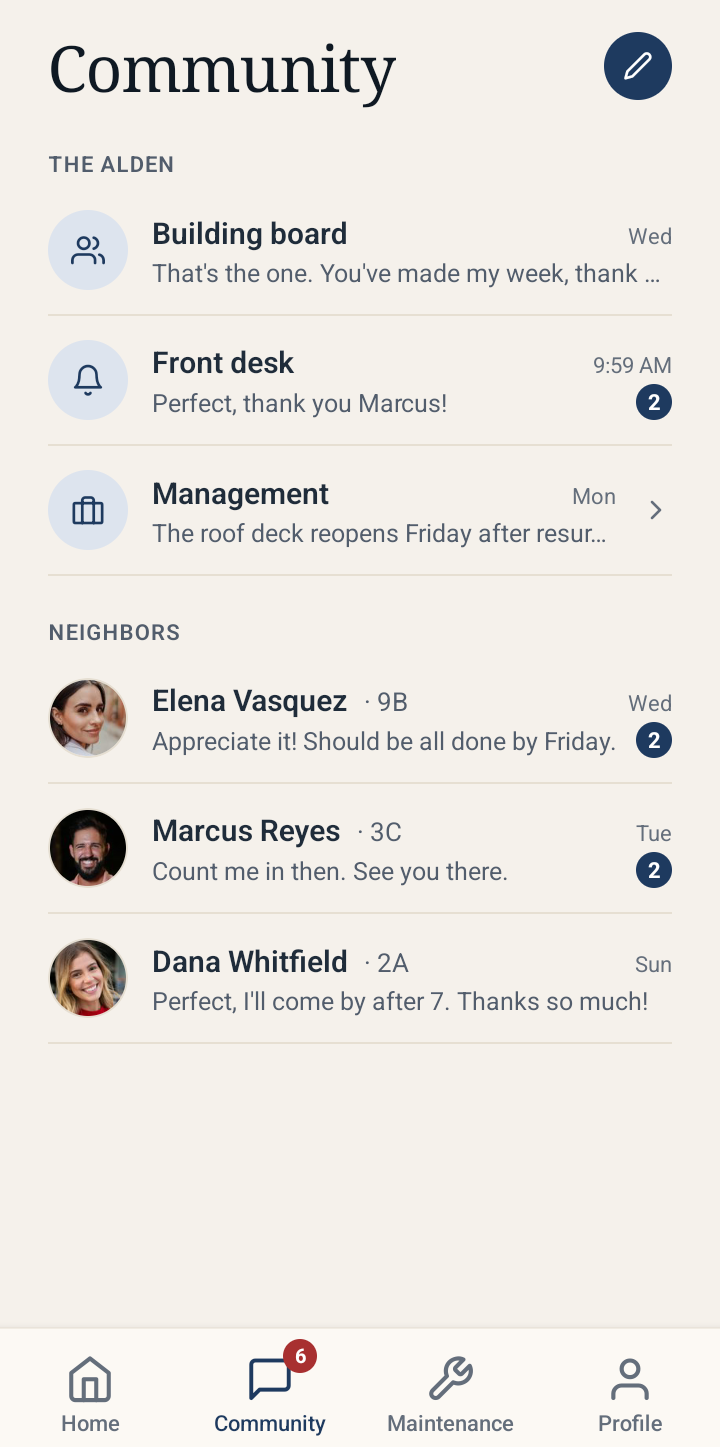 The Community tab with the building board, front desk, management and neighbor rows
Messaging building management
Tap Management. Announcements are at the top: residents can read them but not reply ("Only management can post here."). Under People, each property manager and staff member is listed with their role; tap a name to start a conversation.
Each conversation is between the resident and that one person. A colleague on the management team does not see it. Supers are not listed, so residents report problems to a super through a maintenance request rather than a message.
Messaging the front desk
In a front desk mode building, tap Front desk. The front desk answers from Veni Front Desk, and each desk message is signed with the name of the person on shift, for example "Jordan · Front desk". Package notices and pickup reminders from the desk arrive in the same conversation.
There is no Report or Block on this conversation: the front desk is building staff, not another resident. A resident with a concern about the desk should contact management.
Messaging a neighbor
- On the Community tab, tap the pencil icon at the top right.
- Search by name or unit and tap a neighbor. Only residents of the same building are listed.
- Write the message. The conversation then appears under Neighbors.
Residents choose whether neighbors can message them, with the Direct messages switch on Profile ("Let other residents in your building message you directly."). With it off, they are left out of the neighbor list and cannot start new neighbor conversations. Messages from management and the front desk are not affected.
To tidy the list, press and hold a neighbor conversation and tap Delete. This only hides it on that phone: the neighbor keeps it, and a new message brings it back.
Reactions, threads and mentions
Press and hold any message to react with 👍 ❤️ 😂 😮 😢 🎉, or tap Reply in thread to answer that one message. A message with replies shows a count such as "2 replies"; tap it to open the thread. Thread replies are text only.
Tap a reaction under a message to add or remove your own. Press and hold a reaction to see who reacted.
On the building board, type @ to mention a neighbor. They get a notification even if they only want mentions.
To take back a message, press and hold it and tap Delete message. It is removed for everyone. Replies in a thread cannot be deleted.
Reactions, threads and deleting work on the board, in direct messages and in the front desk conversation. Announcements have none of these.
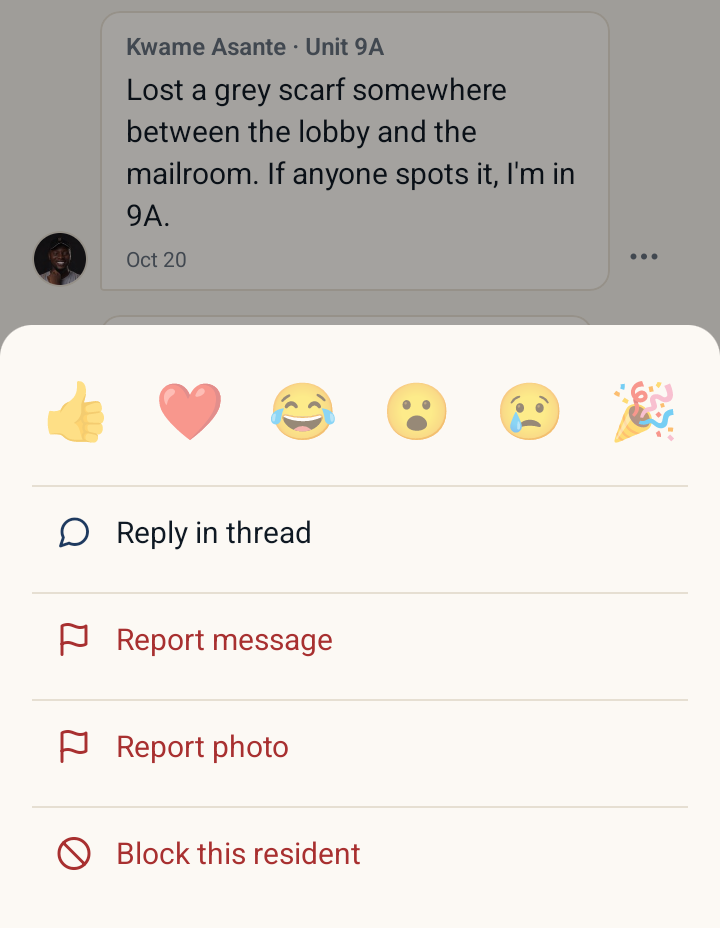 Holding a message on the building board: reactions, Reply in thread, Report and Block
Photos, videos and GIFs
Tap the photo icon next to the message box and choose Take photo, Choose photo from library, Record video, Choose video from library, GIF from library or Search GIFs.
- A message can carry up to 4 attachments, and at most one video.
- Videos can be up to 60 seconds. The app shrinks them before sending, so a long clip shows "Preparing video" for a moment.
- Search GIFs searches KLIPY's library ("Powered by KLIPY").
- Tap a photo to see it full screen. Videos play inside the message.
Someone on an older version of the app may see only the text of a message with a video or GIF.
Unread badges and notifications
A red count on the Community tab shows everything unread, and each row has its own count. Opening a conversation clears it. Counts include new messages and thread replies, never reactions or the resident's own messages.
Residents choose their push notifications on Profile under Community notifications:
- All: every board post, direct message and announcement, plus replies and reactions to their messages.
- Mentions: direct messages (including management and the front desk), thread replies, and board posts that @mention them. No announcements or reactions.
- Off: no push for building posts or direct messages.
Tapping a notification opens that conversation. Management sees each resident's choice, read-only, on the resident's profile in the portal.
More in Residents
- Adding residents: one at a time or in bulk3 min read
- Tracking resident app adoption2 min read
- Bulk-adding residents from a spreadsheet, CSV, or photo3 min read
- Ending, moving, and reviewing a tenancy3 min read
- Managing units and vacancies1 min read