Happening today is the front desk tablet's running list for the shift. It shows what the last person handed over, a short summary, and rows built from the building's own records: residents waiting on a reply, packages, keys out, who is expected and which passes are active. It sits on the Now screen as a card with the first three rows. When there are more, View all at the bottom of the card opens the full screen.
Every row's name, unit and time comes from Veni's records, never from AI. VeniAI writes only the summary at the top, the one-line outcome of a call, an announcement's headline, and a note when two sources disagree. A resident's message is shown in their own words.
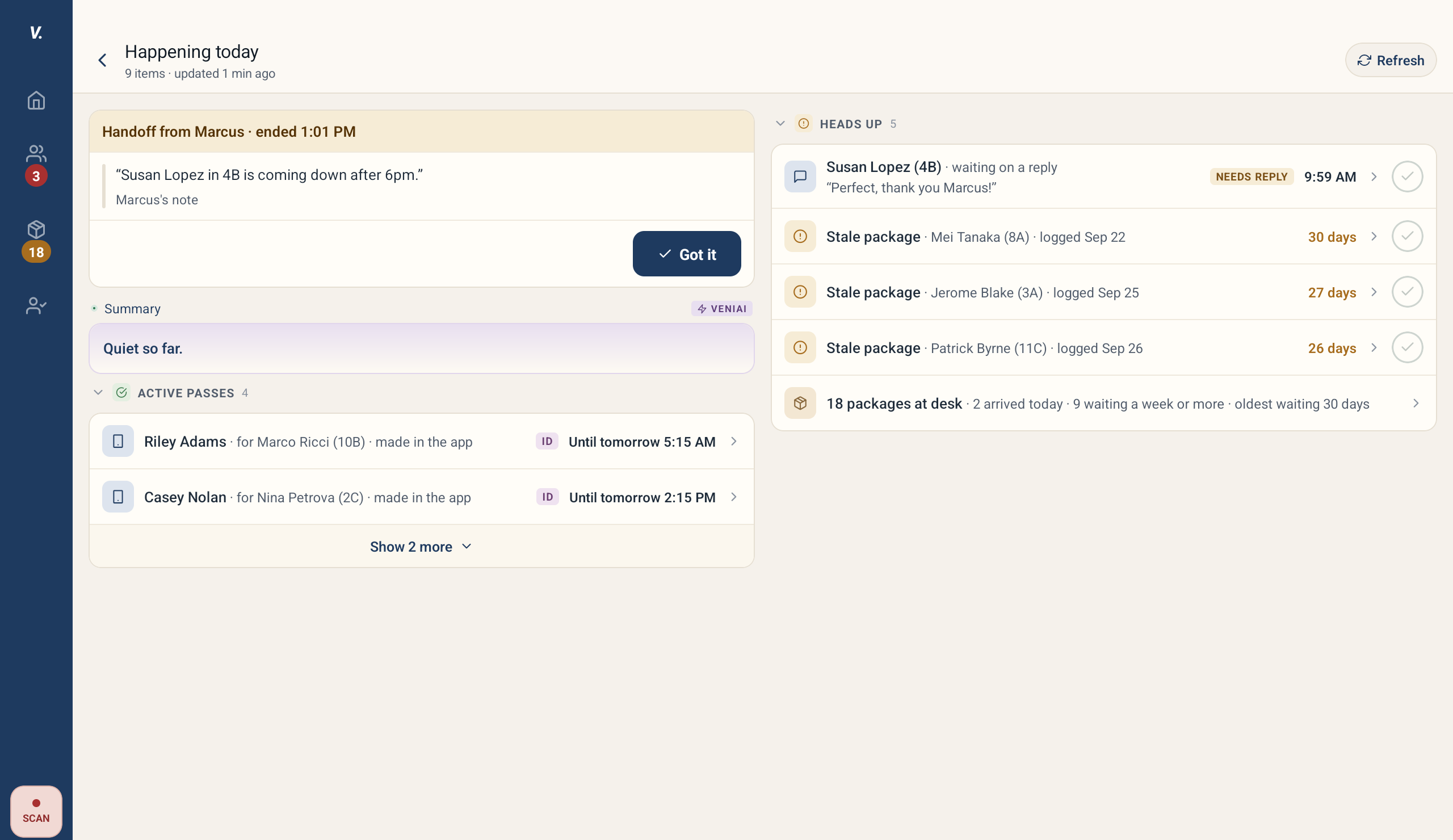 The Happening today screen in landscape: the handoff card, the summary, Active passes and Heads up
The sections
From the top: the handoff card, the summary, then three sections. In landscape the screen has two columns, with the handoff, the summary and ACTIVE PASSES on the left and HEADS UP and EXPECTED TODAY on the right. A section with nothing in it is hidden.
HEADS UP is what needs attention, most urgent first:
- A resident waiting on a reply: their name and unit, their message in quotes, and NEEDS REPLY. A row appears when a resident's latest message in the last 72 hours has no reply from the desk. Reply and the row goes; automatic package notices never count as a resident's message. Tap the row to open their messages.
- Keys out, such as "Key for 4B · with Ana Diaz", with when the key is due back, or "Overdue 4h" in red once it is late. Tap to open the pass sheet. A key row stays until the key is returned.
- Packages: one row with the count at the desk, such as "38 packages at desk", with how many arrived today and how long the oldest has waited, plus up to three "Stale package" rows for residents with a package waiting 7 days or more. Tap to open Packages.
- Calls from the last 24 hours, such as "Call with Leo Park (6C)", with a one-line outcome. Tap to read the VeniAI summary.
- Recent announcements from the desk and from management, with who posted them.
- CHECK rows, when two sources disagree, for example management and a resident giving different move-in times. Tap to see both.
EXPECTED TODAY lists passes that have not started yet, with their time ("2 to 5 PM", "From 6 PM"), and regular visitors on the weekday they usually come ("Usually 10 AM"). Tap a regular to see how often they have visited.
ACTIVE PASSES lists passes already valid, ending soonest first ("Until 3:13 PM", "All day").
Pass rows carry chips for the number of people, KEY, VENDOR, FORM DUE (a vendor who has not signed the access form) and ID (the building checks IDs). Tap any pass row to open the pass sheet.
Times follow the desk clock, in the building's time zone: "3 PM" rather than "3:00 PM", and "Yesterday 9:40 PM" or "Fri 9:40 PM" for an earlier day.
Folding and showing more
Each section shows its first rows, then Show N more: 5 rows for HEADS UP and EXPECTED TODAY, 2 for ACTIVE PASSES.
Tap a section's header to fold it to one line. A folded section keeps a live summary, such as "3 need a reply · 2 stale packages", "next: Jordan Reyes at 2 PM" or "1 end within the hour", and a badge such as "2 new" when rows arrive while it is folded. Tap the header again to open it. Every section starts open at the next shift.
Marking rows complete
A row with a circle on the right can be cleared: a resident's message, a call, an announcement or a regular visitor. Tap the circle, or Mark complete in an expanded row. A cleared row does not come back on later shifts (a new message from the same resident is a new row), and the banner offers Undo for a few seconds. Cleared rows are listed under COMPLETED THIS SHIFT at the bottom of the screen, each with Restore.
A stale package's circle opens Confirm pickup instead, which hands the package over and asks who collected it. A key out has no circle: it closes when the key is returned.
The summary
The Summary pane says in at most 40 words what no row shows: how calls turned out, a pattern worth knowing, a conflict, or simply "Quiet so far." It never repeats the counts or names already listed below it.
The summary, call rows, announcements, regular visitors and conflicts need VeniAI turned on for the building. Without it, Happening today still lists passes, residents waiting on a reply, packages and keys out.
Messages, packages and keys out are always current. The rest is rebuilt automatically when it was written on an earlier day or more than 3 hours ago; tap Refresh on the Happening today screen to rebuild it now.
The handoff card
The handoff card sits at the top of Happening today and inside the card on Now. Its header says who it is from and when they ended, such as "Handoff from Bob · ended 11:04 PM" or "ended yesterday 6 PM". It shows:
- the previous person's note, in quotes, labelled with their name;
- what closed since they left, such as "2 closed since: Ace Plumbing returned the key for 6C · Maria Chen's message answered";
- under "Coming up, not on today's list", anything still open that the rows below do not show, such as a pass that starts at midnight.
Anything already in the rows is not repeated in the card, and with no note, nothing closed and nothing extra there is no card at all. Tap Got it to fold it to one bar ("Handoff from Bob · read") for the rest of your shift; tap the bar to open it again.
The handoff comes from the last person who worked the desk. A "Front desk team" fill-in between two people is skipped, so the note still reaches the next person; a named Team coverage shift counts as a person. If the last shift was closed without End shift, for example because the next person picked their name first, there is no note and no closed-since line.
Ending your shift
- Tap your initials or photo and choose End shift (End shift and sign out with personal sign-in).
- End your shift shows when you started and how long you have been on duty, then Still open at the desk: keys out, vendor passes still open, passes starting in the next 12 hours, residents waiting on a reply, and the package count. It comes straight from the records, so it shows at once.
- Below it is the note for the next person. With VeniAI on, Veni drafts one to three short sentences from your shift's calls, resident messages and announcements, covering only what the list does not show. Regenerate writes a new draft and Edit note lets you change it (Reset to AI draft puts the draft back). Without VeniAI, or when there is nothing to add, the box is empty for you to type in.
- Tap End shift, or Save & end shift while editing. End shift without note ends the shift with no note.
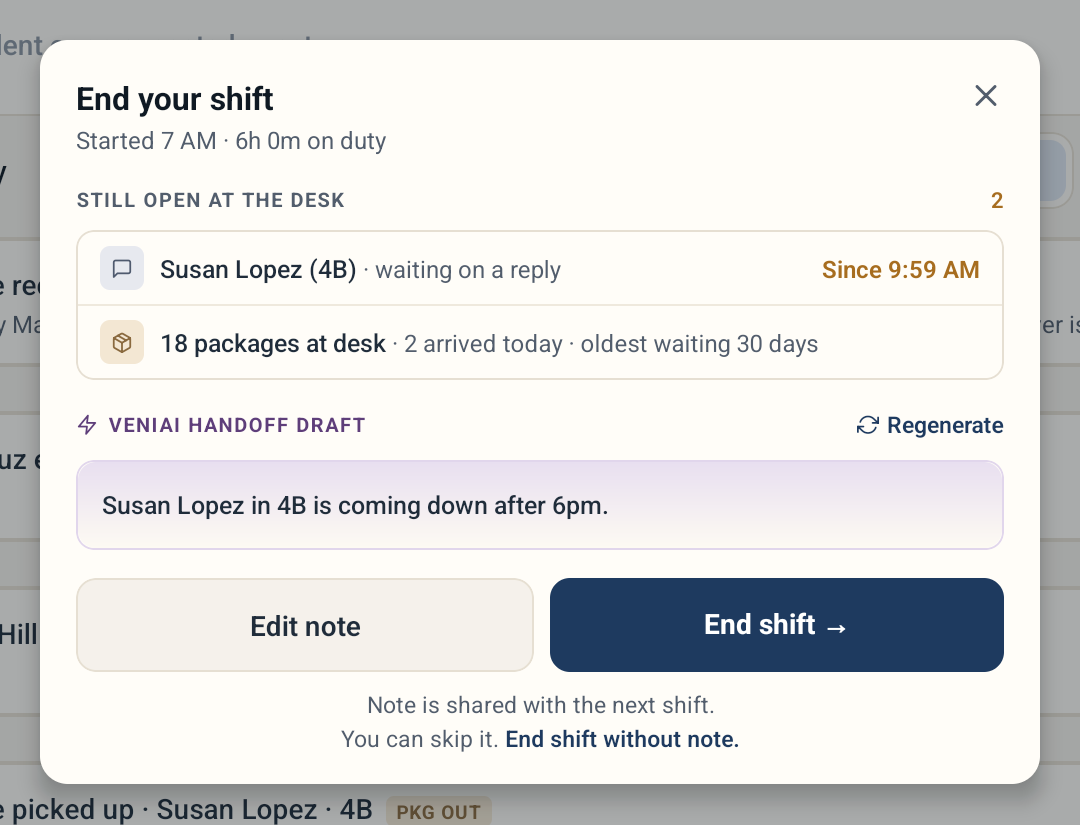 The End your shift window: what is still open at the desk, and the handoff note
You never have to wait for the draft: End shift works while it is still loading, and sends whatever you have typed, or no note.
With the shared sign-in the tablet goes back to Who's on duty?, and a "Front desk team" shift keeps calls ringing until the next person picks their name. With personal sign-in the tablet signs you out.
More in Front desk