The Billing tab in Settings shows your organization's plan, current charges, payment method, and invoice history. It's visible only to organization admins; staff members see a note that billing is admin-only.
Plans come from your account manager
There's no self-serve plan picker here. If your organization doesn't have a plan yet, the panel tells you your Veni account manager is setting it up. Once a plan is assigned, you'll see its name as a badge alongside a status badge (Active, a Stripe status like "trialing", or "Not subscribed").
To change your plan or cancel, use the Contact your Veni account manager link at the bottom of the panel, which opens an email to Veni's billing contact. This is by design: plan changes and cancellations route through a person, not a form.
 The Billing panel showing the plan name badge, status badge, and the Contact your Veni account manager link
Confirming billing on a new plan
Once your account manager assigns a plan but you haven't confirmed payment yet, the panel shows an estimated monthly charge (unit count times rate per unit, with any discount applied) and a Confirm & pay button. Clicking it hands you off to a secure Stripe checkout page; you enter your card details there, directly with Stripe, not on this page.
Once you're active
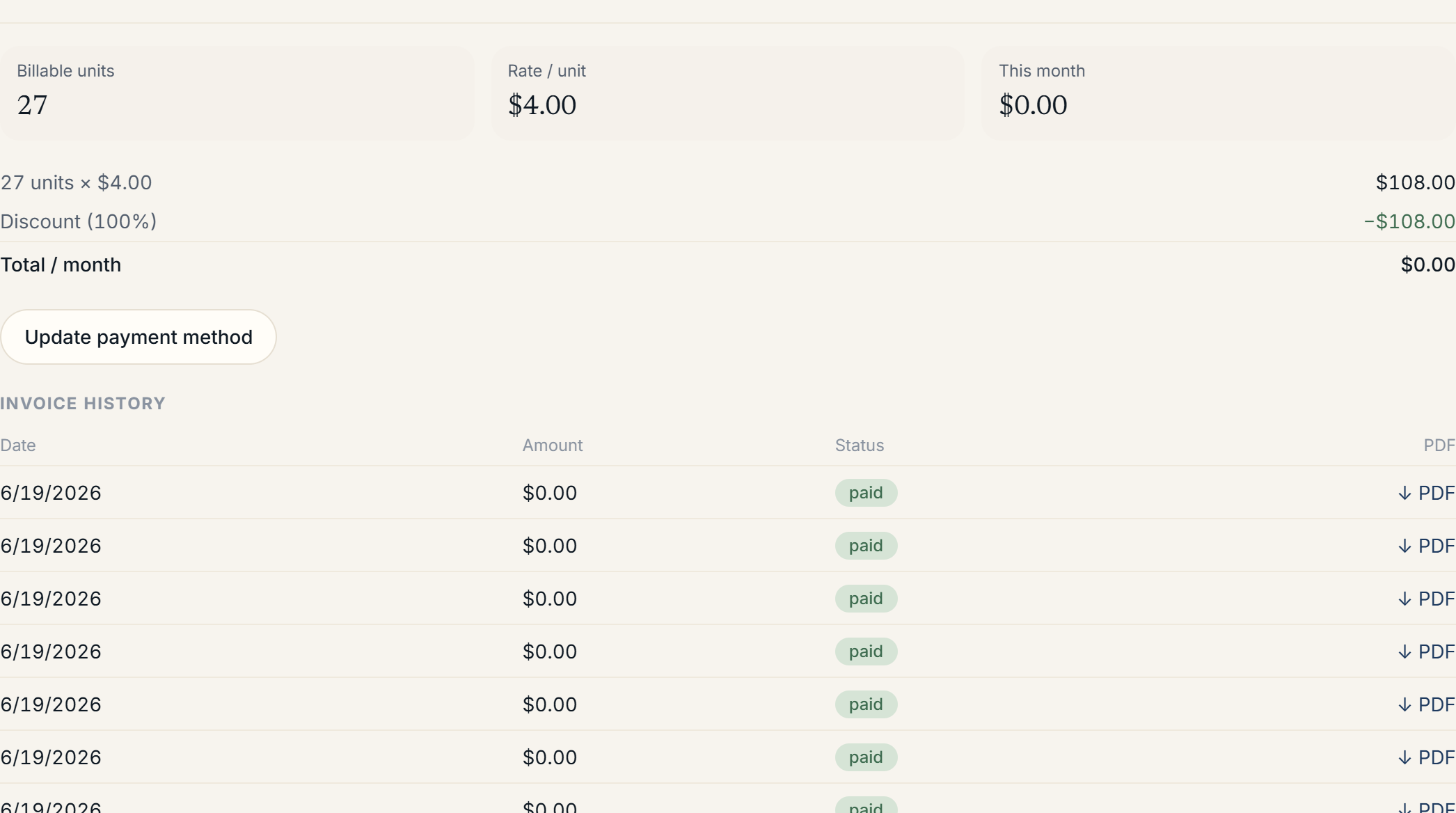
With an active subscription, the panel shows three metrics: Billable units, Rate / unit, and This month, followed by the same charge breakdown and, if a card is on file, its brand and last four digits.
To update your payment method, click Update payment method. This opens an embedded Stripe form on the page. Enter your new card details directly into that form yourself; the field is Stripe's own secure element, and your card number never passes through Veni's servers. Click Save card when you're done.
Invoice history
Below your payment details, Invoice history lists past invoices in a table: Date, Amount, Status (paid, open, draft, uncollectible, void), and a PDF link to download the invoice when one is available.
More in Getting started
- Adding your first building2 min read
- Getting started with Veni2 min read
- Inviting your team: staff, supers, and front desk3 min read
- Reading your dashboard and Daily Briefing2 min read
- Organizations, portfolios, and switching buildings1 min read