Accepting or declining a call
When a visitor buzzes, the desk tablet rings and shows the caller's name and unit with Accept and Reject actions. Accepting connects the call; rejecting hangs up immediately. If the front desk dials a unit instead, the tablet shows a Calling screen with a Cancel option while it waits for the tenant to pick up.
In-call controls and notes
Once connected, the front desk has Mute, Speaker, and Notes toggles, plus an End call button. Opening Notes reveals a set of quick tag chips: Approved visitor, Turned away, Package, Food delivery, and Will call back, along with a free-text field that auto-saves as you type. If a building has VeniAI turned on, the Notes toggle is replaced by a "VeniAI is summarising" indicator, since VeniAI generates the call summary automatically instead.
If the tenant hangs up while the front desk still has notes open or unsaved, the screen doesn't just close. It switches to a wrap-up view with a "Tenant ended the call" banner, keeping notes editable until the front desk taps Save & done, so notes never get lost to an abrupt hangup.
Side-door calls
Calls from a secondary door work differently: the tablet shows a full-screen video panel with the visitor's camera feed and the desk's own camera picture-in-picture (off by default, toggleable), plus an Open Door button to unlock that door directly from the call.
Missed and unanswered calls
Calls the desk didn't pick up, or outgoing calls nobody answered, show inline Call back and Message actions on the tablet's activity list, so the front desk can follow up without hunting for the resident separately.
What managers see afterward
On the portal's Front Desk tab, the "This week, by outcome" Calls card shows answered versus missed counts and the overall answer rate; its Detail link opens a modal with an hour-by-hour heatmap of missed calls and a row for each one, including whether the desk was staffed at the time. If VeniAI is enabled, the building's VeniAI budget & usage panel (under Settings) lists recent transcribed calls with a time, type, and auto-generated summary for each, with a Redact action if a summary needs to be removed.
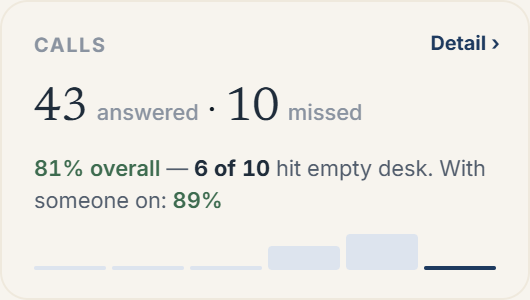 The Front Desk tab's "This week, by outcome" Calls card
More in Front desk