Alerts tune which portfolio events surface on your dashboard so you only hear what actually needs attention. Every built-in detector is a rule you can turn on or off, adjust, and scope to specific buildings.
How alerts work
Each rule watches for a condition across your portfolio (a package sitting too long, a door opener failing repeatedly, an unusual number of unanswered calls, and so on). When a rule's condition is met, it contributes to what you see under "Where things stand" on your dashboard. Rules are grouped into five domains:
- Access & security
- Maintenance
- Front desk
- Package room
- Occupancy
Each domain section on the Alerts page shows only the rules that exist in it, with a count of how many rules are active there.
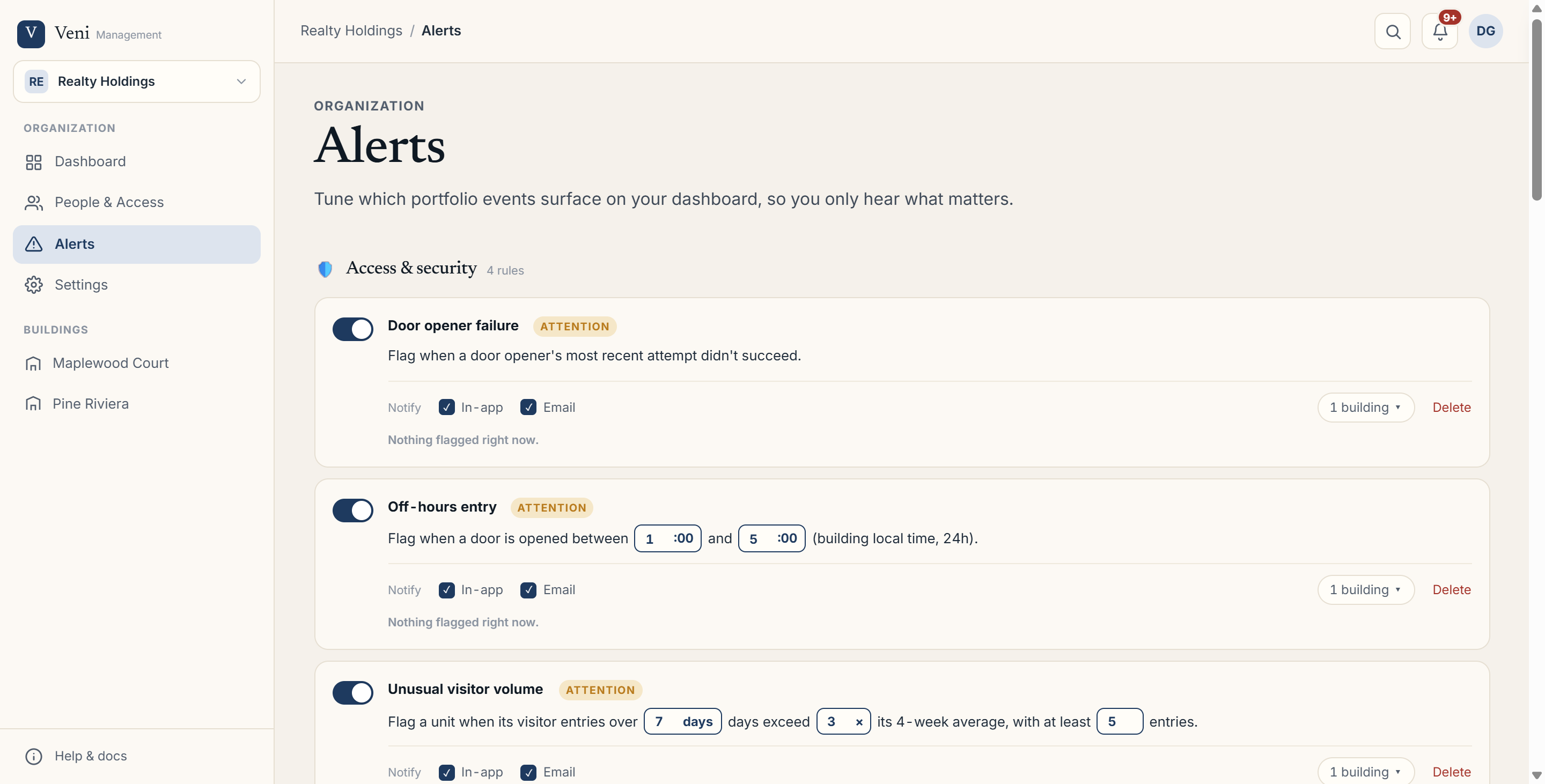 The Alerts page showing domain sections with rule cards grouped under headings like Access & security and Maintenance
Turning rules on and off
Every rule card has an on/off toggle on its left edge. Disabled rules are dimmed and stop contributing to your dashboard, but they stay configured so you can re-enable them later without rebuilding them.
Adding a rule from a template
Click + New alert rule at the bottom of the page to open the template picker. It lists every available rule template with its domain, so you can add another instance of a detector, for example a second package-room rule scoped to a different building. Pick a template and it's created immediately with its default settings; you can then tune it like any other rule.
If alerts aren't available
If your plan doesn't include AI briefing and alerts, the page shows a message: "Alerts aren't in your plan", explaining that alerts watch your portfolio and surface what needs a decision. A View plans link takes you to Billing.
More in Getting started
- Adding your first building2 min read
- Getting started with Veni2 min read
- Inviting your team: staff, supers, and front desk3 min read
- Reading your dashboard and Daily Briefing2 min read
- Organizations, portfolios, and switching buildings1 min read