You can add a photo to your Veni profile so it shows instead of your initials. It helps your front desk recognise you at package pickup and when you call the desk, and it helps neighbors put a face to a name on the building board.
A photo is always optional. If your building has a front desk, the Home tab may show "Help your front desk recognise you at pickup." with an Add photo button. Close it with the X and it does not come back.
Photos need a current version of the Veni app. Anyone using an older version sees initials instead of photos.
Adding or changing your photo
- Open Profile and tap your avatar, the circle with a small camera badge. Edit still changes your name and phone; the avatar is what opens the photo sheet.
- Choose Take a selfie or Choose from library.
- Move and zoom the square on your phone's crop screen to frame your face.
- Check the preview. "Looks good?" shows how others in your building will see you.
- Tap Use photo. The button reads "Saving…" for a moment, and your new photo then appears on Profile.
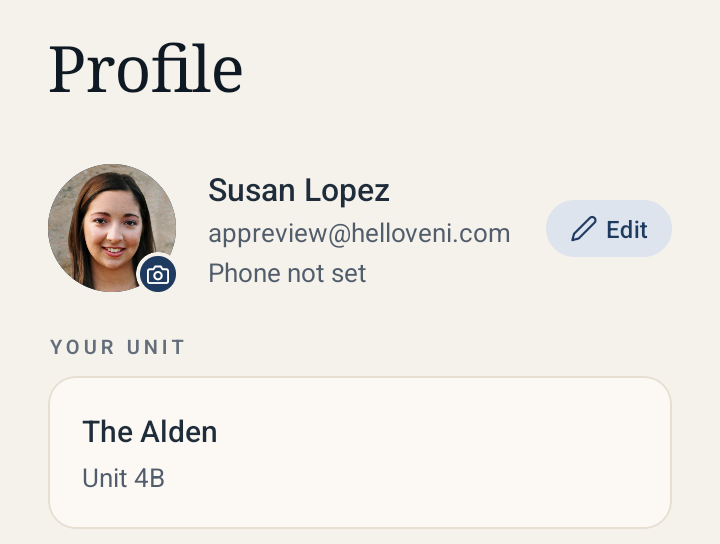 Profile with the avatar and its camera badge
Veni accepts JPG, PNG and WebP photos, and makes large photos smaller for you. If you see "That file type isn't supported", choose a different photo.
You can add, change or remove your photo up to 10 times in 24 hours. After that you'll see "You've changed your photo a lot today. Try again tomorrow."
If saving fails, you'll see "Couldn't save your photo. Check your connection and try again." Tap Try again, or Retake (Choose another for a photo from your library) to start over.
If the camera or your photo library is switched off for Veni, the sheet says so. Tap Open Settings to allow it.
Who sees your photo
Your photo follows your name: people who can already see your name in Veni see your photo, and nobody else. The photo sheet says who that is for your buildings, for example "Your front desk, building management and neighbors will see it. Visitors never do."
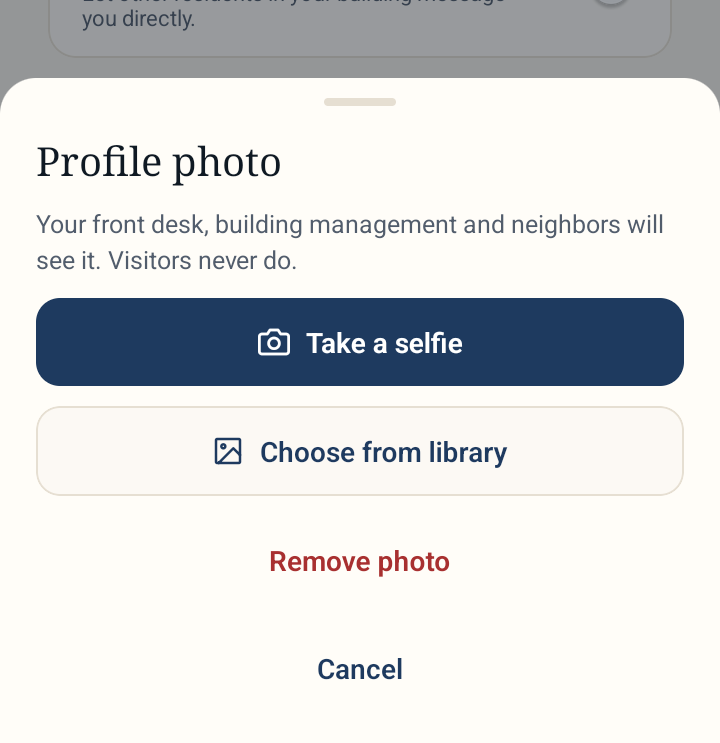 The photo sheet with Take a selfie, Choose from library and who will see it
- Your front desk sees it on the resident list, at package handout, on calls and in your messages with the desk.
- Building management sees it where they see residents by name, and with your maintenance requests. Where management sees residents anonymously, they do not see your photo either. Your building's super also sees it on your maintenance requests.
- Neighbors see it next to your name on board posts and replies, in direct messages and in the neighbor list. You do not see people you blocked, and the neighbor list hides both of you from each other. If you turn off Direct messages, you leave the neighbor list, but your board posts still show your photo.
- Visitors never do. Your photo is never on the intercom directory, lock-screen notifications, emails, printed welcome kits or exports.
If you are a super with no unit of your own, the sheet says "Residents in buildings you cover will see it."
When you move out, your old building stops showing your photo. A screen someone already had open can keep showing it for up to an hour.
Removing your photo
Open Profile, tap your avatar, then Remove photo, and confirm with Remove. Your initials show instead. A removal counts toward the 10 changes in 24 hours.
Privacy
- Location and other hidden details are removed from every photo before it is stored.
- Photos are encrypted and kept in a private store, and shown only through links that expire within an hour. They are never posted to a public image host.
- If you delete your Veni account, your photo is deleted with it. If you leave Veni, it is deleted 12 months after you stop living or working at any building on Veni.
Reporting a photo
If someone's photo is not of them, or is offensive, press and hold one of their messages (or tap the three-dot button beside it) and choose Report photo. In a direct message you can also use the three-dot button at the top of the conversation. Pick a reason, Not a photo of this person, Offensive or inappropriate or Something else, and tap Report. You'll see "Thanks. Veni will review this photo."
Report photo is not offered in your conversation with the front desk or on announcements.
If your photo was removed
Building management or Veni can remove a photo, for example after a report. If that happens, Profile shows "Your photo was removed" and who removed it. Tap Add a photo to add a different one.
More in Residents
- Adding residents: one at a time or in bulk3 min read
- Tracking resident app adoption2 min read
- Bulk-adding residents from a spreadsheet, CSV, or photo3 min read
- Ending, moving, and reviewing a tenancy3 min read
- Managing units and vacancies1 min read